Ask any experienced Linux administrator what causes the most production outages, and the answer is rarely CPU, memory, or networking. It’s storage.
- Disks silently fill up.
- Filesystems become corrupted.
- Mount points fail.
- Logs stop writing.
- Databases crash.
- Systems refuse to boot.
Storage failures are rarely loud at the start. They accumulate quietly, often unnoticed, until they trigger sudden and severe outages.
In the previous post, I covered Linux Foundations (Beginner): How Linux Really Works – Not Just Commands, focusing on the internal mechanics that power a Linux system.
Next, I explored Mastering Linux Core Operations: Users, Permissions, sudo, Packages & Services (Beginner → Intermediate), where control, access, and system structure come into focus.
I then covered Linux Processes & Networking: Monitoring, Signals, Ports, and Connectivity, shifting the focus to visibility, performance, and system stability.
This guide builds on all of those by introducing a new core principle: reliability.
You’ll learn how Linux stores data, how disks and partitions are structured, how file systems work, and most importantly, how to detect, prevent, and recover from the storage issues that bring down real-world Linux systems.
HOW LINUX SEES STORAGE (CORE CONCEPT)
Linux treats storage devices as files; everything is a file in Linux.
Disks appear as
/dev/sda
/dev/sdb
Partitions appear as
/dev/sda1
/dev/sda2
This design allows Linux to:
- Abstract hardware
- Support HDDs, SSDs, NVMe, USB, cloud block storage
- Mount storage anywhere in the filesystem
- Treat all devices consistently
Lab: List All Storage Devices
lsblk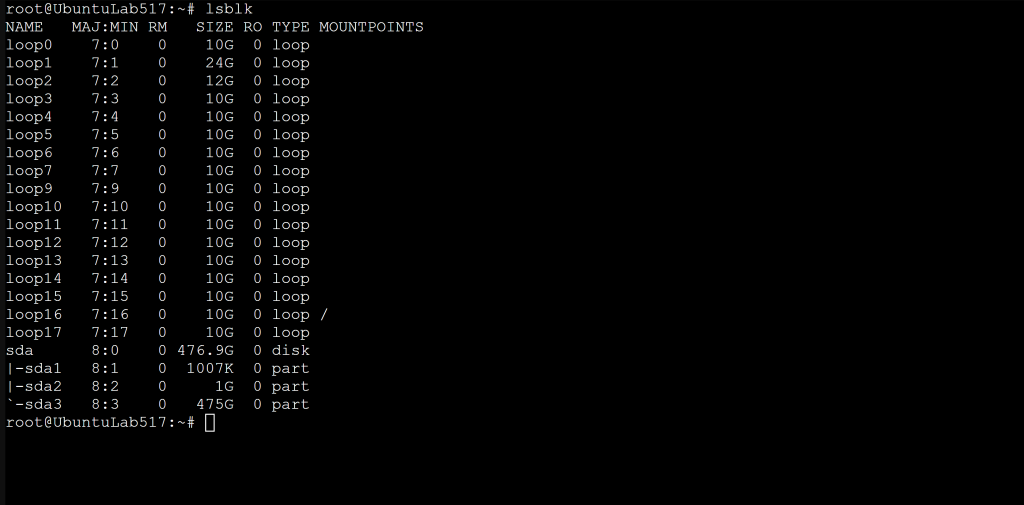
This shows:
- Disks
- Partitions
- Sizes
- Mount points
Lab: View Detailed Disk Information
sudo fdisk -lThis is your first step in understanding how Linux sees storage.
Disks vs Partitions
Disk
A disk is the physical or virtual storage device.
Examples:
- HDD
- SSD
- NVMe
- Cloud block storage (AWS EBS, Azure Managed Disk, GCP Persistent Disk)
Partition
A partition is a logical slice of a disk.
Why partitions exist:
- Separate OS and data
- Improve organization
- Enable multiple filesystems
- Support dual‑boot setups
- Protect system files
Lab: Identify Disks vs Partitions
lsblk -o NAME,TYPE,SIZE,MOUNTPOINT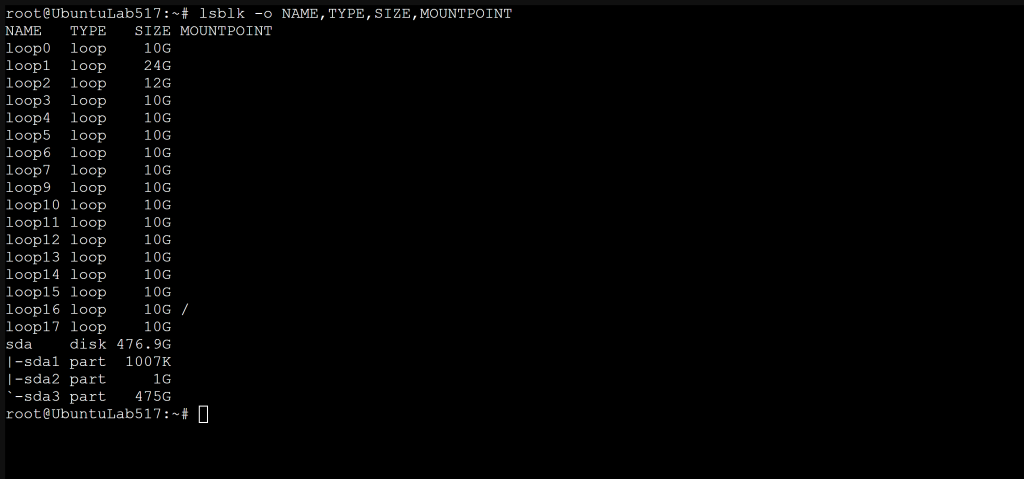
Look for:
disk→ physical/virtual devicepart→ partitions
Filesystems (What Makes Data Usable)
A filesystem defines:
- How data is stored
- How files are named
- How permissions work
- How metadata is tracked
Common Linux filesystems:
- ext4 → most common, stable
- xfs → enterprise, scalable
- vfat → USB drives, FAT32 compatibility
- btrfs → snapshots, advanced features
Without a filesystem, a disk is raw and unusable.
Lab: Check Filesystem Types
lsblk -f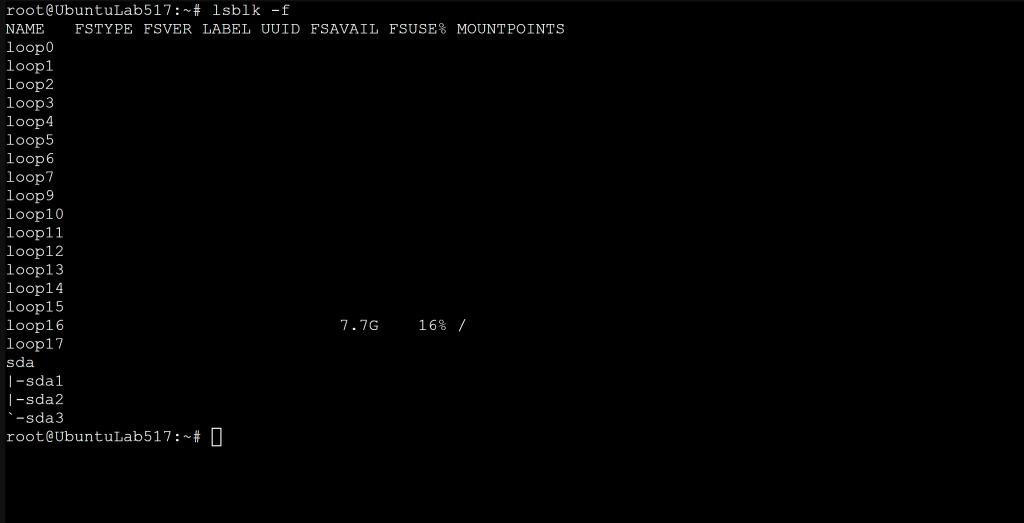
You will learn
- Filesystem formats
- UUIDs (important for fstab)
Lab: Create a Filesystem (ext4)
⚠️ Only run this on a test disk, not a production system.
sudo mkfs.ext4 /dev/sdb1This formats the partition with ext4.
Lab: Inspect Directory Sizes
du -sh /var
du -sh /home/*
You will learn
- What consumes space
- Why logs grow
Mounting: How Linux Accesses Storage
Linux does not use drive letters like Windows (C:, D:).
Instead, storage is mounted into the directory tree.
Example mount point:
/mnt/dataOnce mounted, the disk becomes part of the filesystem.
Lab: Create a Mount Point
sudo mkdir -p /mnt/dataLab: Mount a Partition
sudo mount /dev/sdb1 /mnt/dataYou will learn
- Manual mounting
- Testing before persistence
Lab: Unmount Safely
sudo umount /mnt/testYou will learn
- Why mounted disks can’t be removed
- Avoiding data corruption
Lab: Verify Mount
df -h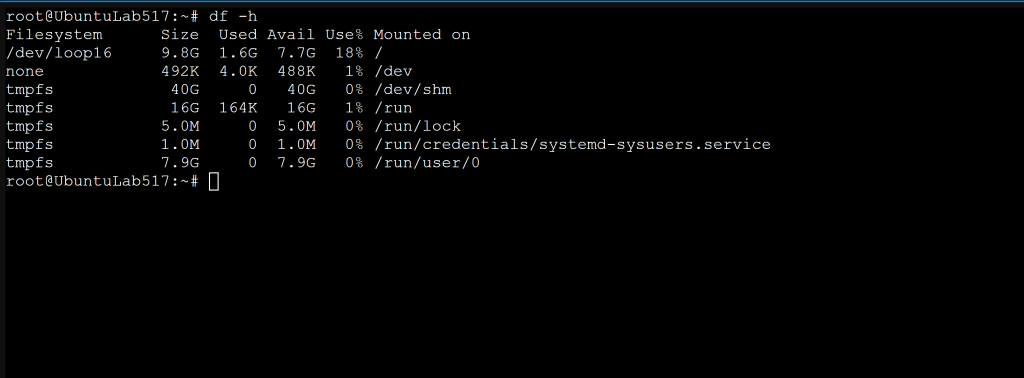
You will learn
- Filesystem usage
- Free vs used space
- Mount points
Lab: View Disk Size & Usage
df -h /
watch df -h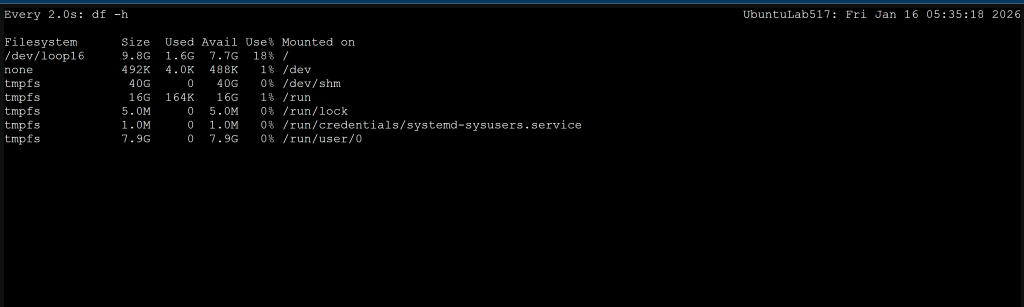
You will learn
- Real-time monitoring
- Capacity planning mindset
Lab: Understand Mount Points
mount
findmnt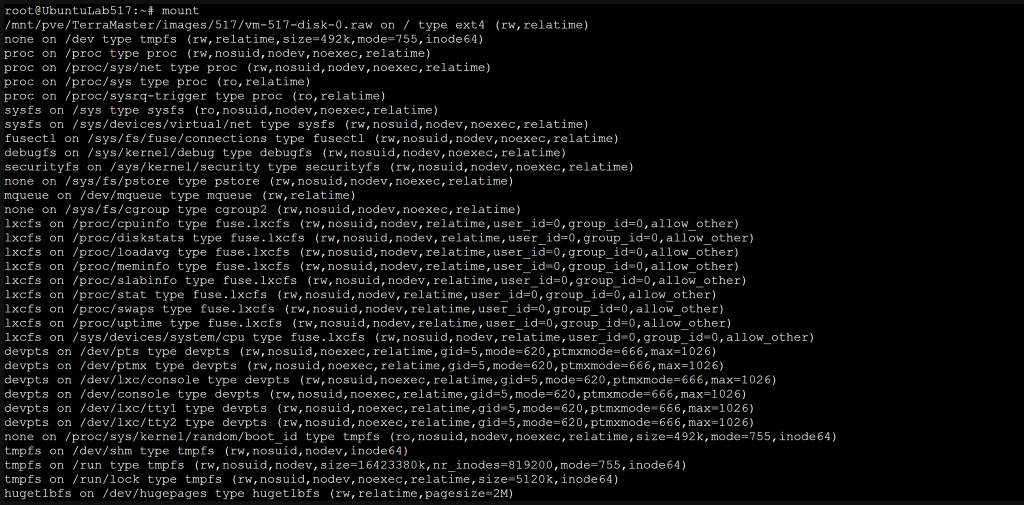
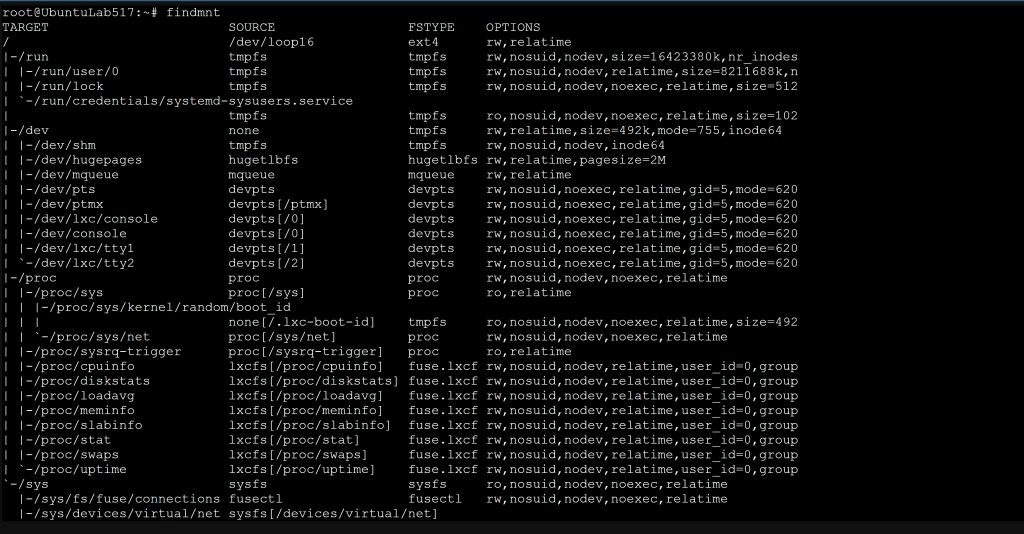
You will learn
- Active mounts
- Filesystem types
- Mount options
/etc/fstab: Persistent Mounts (Critical File)
/etc/fstab controls:
- What disks mount at boot
- Where they mount
- With what options
A mistake here can:
❌ prevent boot ❌ cause emergency mode ❌ break services
Admins treat this file with respect.
Lab: View fstab
cat /etc/fstabYou will learn
- Boot-time mounts
- Why UUIDs are safer than device names
Lab: Add a Persistent Mount (Safe Method)
- Get the UUID:
blkid /dev/sdb1- Add to
/etc/fstab:
UUID=xxxx-xxxx /mnt/data ext4 defaults 0 2- Test without rebooting:
sudo mount -aIf no errors appear, the entry is valid.
Disk Usage & Capacity (Why Systems Fail)
When disks fill up:
- Services crash
- Logs stop writing
- Databases fail
- Containers stop
- Servers become unstable
Monitoring disk usage is a core admin responsibility.
Lab: Check Disk Usage
df -hLab: Find Large Files
sudo du -sh /* 2>/dev/null | sort -h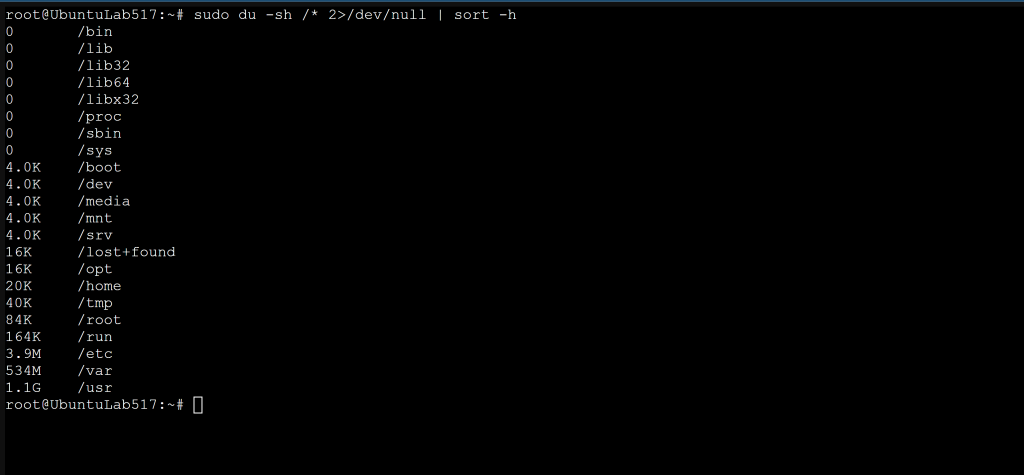
Lab: Check Inode Usage (Often Forgotten)
df -i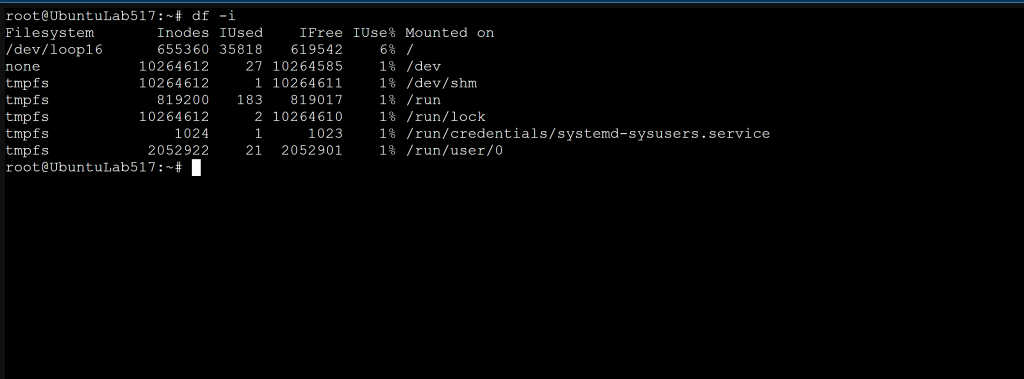
If inodes run out, you cannot create new files even if space is available.
Key Takeaway
Linux storage is simple in design but unforgiving when mismanaged.
Admins don’t wait for disks to fail; they monitor, mount carefully, and plan capacity.
This tutorial guide gives you the skills to prevent the most common cause of Linux outages.