They start with commands - ls, cd, chmod, sudo - and hope that eventually the system will “make sense.” But Linux only makes sense when you understand how it actually works under the hood.
This guide gives you the mental model that every engineer needs. No memorization. No cheat-sheet culture. Just clarity.
**What ****Is ****Linux **(and What It Isn’t)
Linux is an operating system kernel, created by Linus Torvalds in 1991.
**Kernel: **The kernel is the core of the operating system that:
- Handles hardware devices
- Controls memory (RAM)
- Manages CPU processes
- Security
- Filesystems
- Provides system calls for applications
It is the “brain” that everything else depends on.
**User Space: **This is Everything outside the kernel.
- Shells (bash, zsh, fish)
- Applications
- System utilities
- Desktop environments
When you type a command, you’re interacting with user space, which then interacts with the kernel.
Linux + GNU = A Complete Operating System
Linux alone is not usable. A full system combines:
- Linux kernel
- GNU utilities (bash, coreutils, grep, awk, etc.)
- System libraries
- Package manager
- Optional desktop environment
This is why most systems are correctly called GNU/Linux.
**GNU **in Linux is the essential collection of free software tools (like compilers, shells, and utilities) that, when combined with the Linux kernel, form the complete operating system known as GNU/Linux, which powers most Linux distributions, providing the userland environment for the kernel to run.
Linux is the kernel (the core resource manager), while GNU provides the rest of the operating system's familiar applications and libraries, creating a fully functional system.
Linux Distributions (Distros)
A Linux distribution is a packaged operating system built around the Linux kernel, bundled with:
- System utilities
- Package manager
- Default configuration
- Desktop or server focus
All distros share the same kernel concept but differ in package management, defaults, release models, and philosophy.
Common Linux Distribution Families
🔹 Debian-Based
Examples:
- Ubuntu
- Linux Mint
- Debian
Characteristics:
- Uses APT package manager
.debpackages- Strong stability
- Widely used in servers and cloud
Used heavily in:
- Cloud VMs
- Containers
- Enterprise environments
🔹 Red Hat-Based
Examples:
- RHEL
- Rocky Linux
- AlmaLinux
- Fedora
Characteristics:
- Uses DNF/YUM
.rpmpackages- Enterprise-focused
- Common in corporate data centers
🔹 Arch-Based
Examples:
- Arch Linux
- Manjaro
Characteristics:
- Rolling release
- Minimal by default
- Manual configuration
- Best for learning internals deeply
Important Truth
If you understand one Linux system well, you can work on any Linux system.
The core concepts do not change.
Terminal Basics - What the Terminal Actually Is
The terminal is a text-based interface that allows users to communicate directly with the operating system using a shell. A shell interprets commands and communicates with the kernel.
Common shells:
- Bash (Bourne Again Shell) - default on most systems
- Zsh (Z Shell)
- Sh (Bourne Shell)
Prompt example:
user@server:/home/user$user→ logged-in userserver→ hostname/home/user→ current directory$→ normal user#→ root (administrator)
What Actually Happens When You Run a Command
This is the part nobody explains, but it’s the key to understanding Linux.
Let’s say you type:
ls -l /homeHere’s the real sequence:
1. The Shell Reads Your Input
The shell (Bash, Zsh, etc.) receives your text.
2. The Shell Parses and Expands
It interprets:
- Variables
- Wildcards
- Quotes
- Aliases
- Functions
3. The Shell Locates the Program
It searches through $PATH to find the ls binary.
4. The Shell Requests the Kernel to Execute It
The shell uses a system call (execve) to ask the kernel to run the program.
5. The Kernel Creates a Process
The kernel:
- Allocates memory
- Assigns a PID
- Schedules CPU time
6. The Program Runs and Produces Output
ls reads the directory and prints results.
7. The Shell Waits, Then Returns Control
Once the process ends, the shell is ready for the next command.
This lifecycle explains why Linux feels predictable once you understand the flow.
Understanding Commands, Options, and Arguments
Every Linux command follows this structure: Command [options] [arguments], which means the command is compulsory. Options and arguments are optional. They add and remove information to and from the output. They allow us to format the output in a specific manner. Let’s break it down.
Commands
Commands are the actions you want Linux to perform. When we hit the Enter key after typing a word on the command prompt, the shell interprets it as a command. It finds a file or a script matching the typed word in predefined directories. To view the predefined directories, use the following command.
$echo $PATHIf it finds a matching script, it executes the script. If not, it returns the error message command not found. Let us take an example. Execute the following commands on the command prompt.
$ls
$list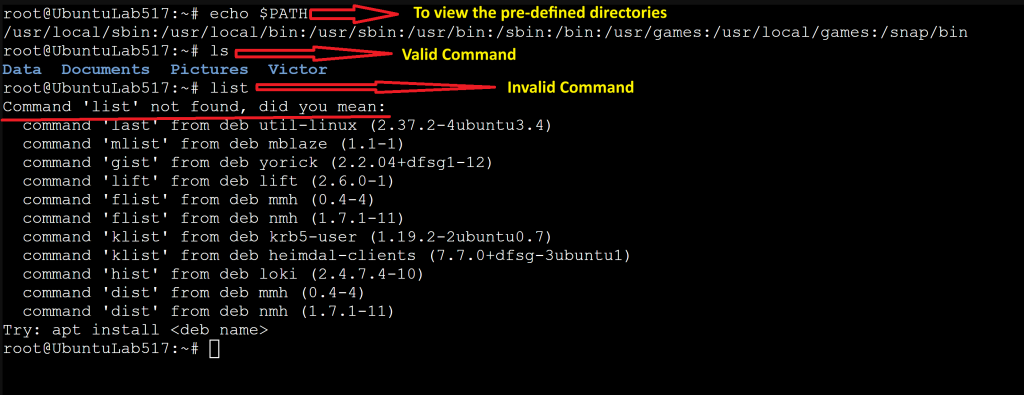
The shell has a script file named ls, but it does not have any file or script named list. Since it has a script file named ls, it executes the first command and returns an error for the second command.
Options
Options modify the default behavior of the command. They are optional. They are also known as switches. There are three ways to specify options for the command. These are without a hyphen sign, with a single hyphen sign and with double hyphen signs. The following are examples of these methods.
$ls
$ls -l
$ls --inode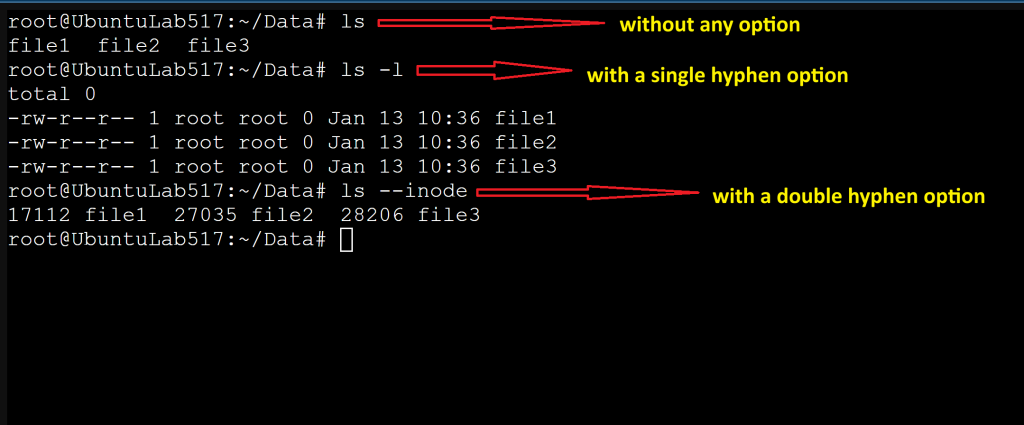
By default, the ls command lists the contents of the current directory.
In the first command, we did not use any option. So, it displayed all the contents of the current directory
In the second command, we used the -l option. It is an example of a single hyphen sign option. When we use it, the ls command displays contents with their properties in a list format.
In the third command, we used the --inode option. It is an example of a double hyphen sign option. When we use this option, the ls command displays the inode number and its contents.
Arguments
Arguments are the input of the command. Everything we specify after the command is an argument (including options). Technically, all options are arguments. But all arguments are not options.
Options only modify and format the output. They do not control or specify a target for the command. Arguments do these. For example, the ls command shows the names of all the contents available in the current directory. If we use an option with it, the option modifies the output. For example, if we use the -l option, it displays the names in the listing format with other properties. No option can force the ls command to display contents from another directory. An argument does this job. If we specify a directory with this command as an argument, it shows the contents of that directory instead of the current directory.
$ls
$ls data
$ls -l data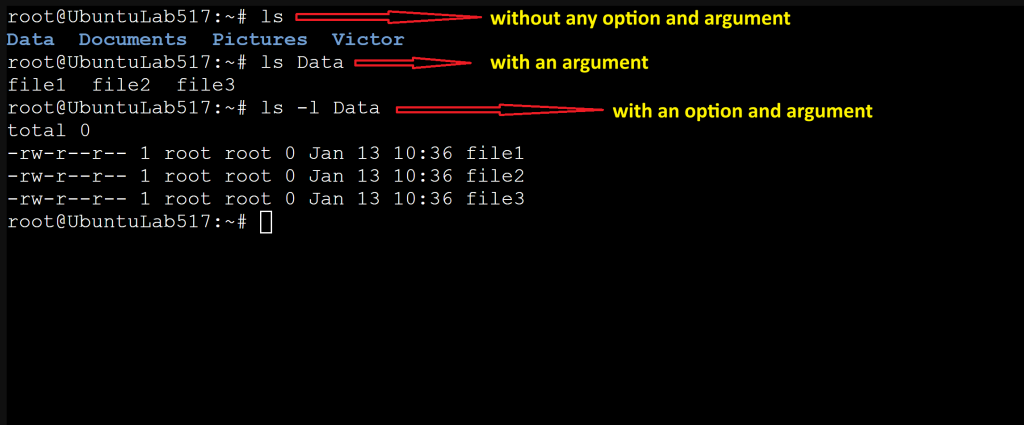
The first command displays the contents of the current directory. This command does not use any option or argument.
The second command uses one argument. We specified the data directory's name as an argument. If we specify the target directory, the ls command displays the content of the specified directory.
The third command uses one argument and one option. The option instructs the command to display the output in the list format with detailed information. The argument instructs the command to display the content of the specified directory instead of the current directory.
In Conclusion: Options and arguments allow us to control the command's output. Options format the output. Arguments control the command. They instruct the command to include additional information in the output.
Linux File System Hierarchy (FSH)
Linux uses one directory tree, starting at / (root). There are no drive letters like Windows.
| Directory | Purpose |
|---|---|
/ | Root of everything (Everything starts here) |
/bin | Essential user commands. |
Examples: ls, cp, mv, cat
Required for system boot. |
| /sbin | System admin commands.
Examples: ip, mount, reboot
Intended for administrators |
| /etc | System Configuration files
Text-based Examples:
/etc/passwd
/etc/hosts
/etc/ssh/sshd_config
Rule:
No binaries here. Configuration only. |
| /home | User home directories
Example: /home/victor
Personal files, downloads, configs |
| /var | Variable data (logs, caches, queues)
Example:
/var/log/syslog
/var/log/auth.log |
| /tmp | Temporary files
Cleared on reboot
World-writable (with restrictions) |
| /usr | User applications and libraries
Not user-specific despite name
/usr/bin, /usr/lib |
| /dev | Device files
Hardware represented as files
Example:
/dev/sda
/dev/null |
| /proc | Kernel & process information
Virtual filesystem
Generated dynamically |
Here are other essential directories:
| Directory | Purpose |
|---|---|
/lib | Shared libraries needed by /bin and /sbin |
/opt | Optional third-party software |
/mnt & /media | Mount points for external storage |
Why it matters
Once you understand the hierarchy, you can:
- Troubleshoot faster
- Navigate confidently
- Understand where applications live
- Know where logs and configs are stored
This is foundational knowledge for any engineer.
Users, Groups, and Permissions - The Real Model
Linux is built on a simple but powerful security model.
Identities
Every process runs as a user with a UID (User ID). Users belong to groups with GIDs (Group IDs).
Ownership
Every file has:
- An owner (user)
- A group
Permission Bits
Each file has three sets of permissions:
- User (owner)
- Group
- Others
Each set controls:
- r → read
- w → write
- x → execute
Example:
-rwxr-x---Which means:
- Owner: read, write, execute
- Group: read, execute
- Others: no access
Why it matters
Understanding permissions makes commands like
chmodchownchgrpumask
feel logical instead of mysterious.
Processes and the Kernel
A process is simply a running program. Linux manages processes using:
- PIDs (process IDs)
- Parent/child relationships
- Signals (e.g.,
SIGTERM,SIGKILL) - Schedulers (decide which process gets CPU time)
Foreground vs Background
- Foreground: runs in the terminal
- Background: runs behind the scenes
Commands like ps, top, htop, kill, and jobs make sense once you understand this model.
How Everything Fits Together
Here’s the mental model:
+-----------------------------+
      | Applications |
+-----------------------------+
         | Shell |
+-----------------------------+
     | System Utilities |
+-----------------------------+
        | User Space |
+-----------------------------+
          | Kernel |
+-----------------------------+
         | Hardware |
+-----------------------------+- The shell is just a translator.
- The kernel is the enforcer.
- User space is where you live.
- Hardware is what the kernel controls.
Once you see Linux as layers, everything becomes predictable.
Practical Mini‑Exercises (No Copy‑Paste Commands)
These exercises reinforce understanding:
1. Identify your shell
Explain what it is and why it matters.
2. Explore the filesystem
Navigate /etc, /var/log, /usr/bin.
3. Inspect a running process
Find its parent and children.
4. Check file permissions
Explain what each bit means.
5. Trace what happens when you run a command
Use type, which, and strace (optional).
These build intuition - not memorization.
Why Understanding This Makes You a Better Engineer
This foundational knowledge improves:
- Troubleshooting
- Security
- Automation
- Scripting
- Cloud engineering
- Containerization
- DevOps workflows
Linux is everywhere: servers, containers, IoT, cloud platforms, and understanding how it works gives you an edge.
Conclusion
Linux isn’t about commands. It’s about understanding the system.
Once you grasp the kernel, the shell, processes, permissions, the filesystem, and the execution lifecycle. Linux becomes predictable, elegant, and even enjoyable.