Linux remains one of the most essential skills for cloud engineers, DevOps practitioners, and system administrators. Every automation pipeline, container platform, and cloud workload eventually touches Linux. Instead of memorizing commands, the most effective way to learn is through structured, hands‑on labs that build confidence and deepen understanding.
This tutorial‑driven guide walks you through the core operations every engineer must master: users, permissions, sudo, package management, and services. I will also include practical labs you can follow on any Linux system in each section.
In the previous post, I talked about How Linux really works. This lab teaches you how to operate and control a Linux system safely. This is the point where learners stop being “Linux users” and start thinking like Linux administrators.
WHAT ARE LINUX CORE OPERATIONS?
Linux Core Operations are the fundamental administrative tasks required to:
- Control who can access the system
- Control what files can be accessed
- Control which commands require elevated privileges
- Control what software is installed
- Control what services run automatically
Every Linux administrator, DevOps engineer, or cloud engineer relies on these operations daily.
USERS & GROUPS: IDENTITY IN LINUX
Linux treats everything as a file, and every file belongs to a user and a group. Understanding this relationship is the foundation of permissions, security, and automation.
What Is a User in Linux?
A user is an identity that Linux uses to determine:
- Ownership of files
- Permission to run commands
- Access to system resources
Linux is multi-user by design, even on a personal machine.
UID & GID (CRITICAL CONCEPTS)
- UID (User ID): Numeric identifier for a user
- GID (Group ID): Numeric identifier for a group
- /etc/passwd: Stores user account information.
- /etc/group: Stores group definitions.
Linux uses numbers internally, not names.
System users (services) usually have:
- UID < 1000 Human users usually have:
- UID ≥ 1000
Inspect Users & Identity
whoami
id
cat /etc/passwd
cat /etc/group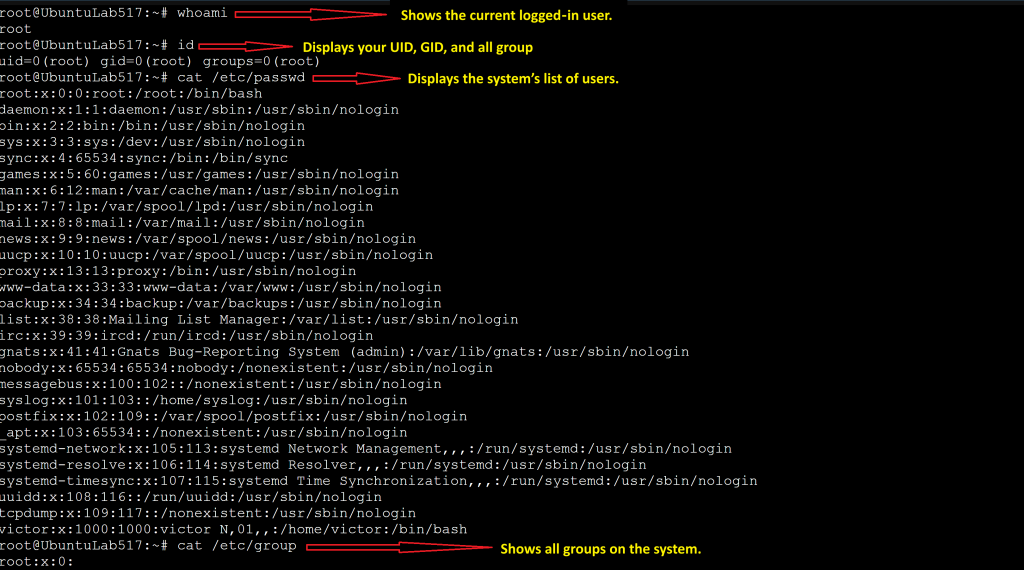
What This Teaches
whoami
Meaning: Shows the current logged‑in user.
Why it matters: It confirms which identity the shell is operating under, essential when dealing with permissions, sudo, or scripts.
id
Meaning: Displays your UID, GID, and all group memberships.
Why it matters: This command reveals your security context, what you can access, what groups you belong to, and how the system sees you.
This tells you:
- Your user ID
- Your primary group
- All secondary groups (e.g., sudo)
cat /etc/passwd
Meaning: Displays the system’s list of users.
What the file contains: Each line represents a user account with fields like:
- Username
- UID
- GID
- Home directory
- Default shell
Why it matters: It helps you understand:
- Which users exist
- System vs human accounts
- Login shells
- Home directory locations
cat /etc/group
Meaning: Shows all groups on the system.
What the file contains: Each line lists:
- Group name
- GID
- Members
Why it matters: Groups control access to:
- Files
- Directories
- System resources
- Administrative privileges
FILE PERMISSIONS & OWNERSHIP: ACCESS CONTROL
Linux controls file access using permissions + ownership.
Permission Types
- r → read
- w → write
- x → execute
Permission Scope
- Owner
- Group
- Others
Example:
-rwxr-x---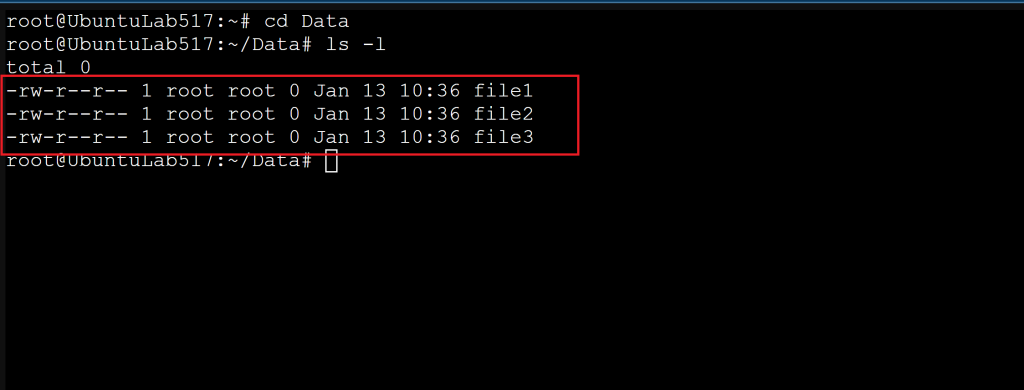
Why Permissions Exist
Permissions prevent:
- Accidental system damage
- Unauthorized access
- Privilege escalation
This is security by design, not inconvenience.
Read Permission Output
ls -l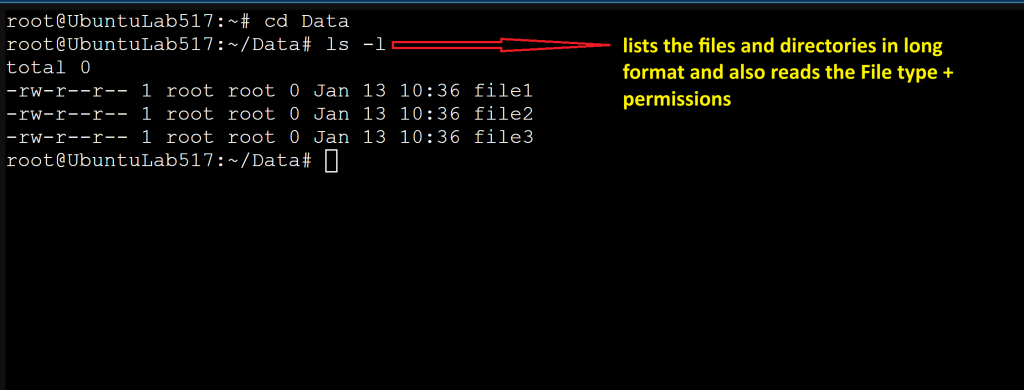
Break down:
- File type
- Permission bits
- Owner
- Group
Modify Permissions Safely
chmod 644 file.txt
chmod 755 file1.txt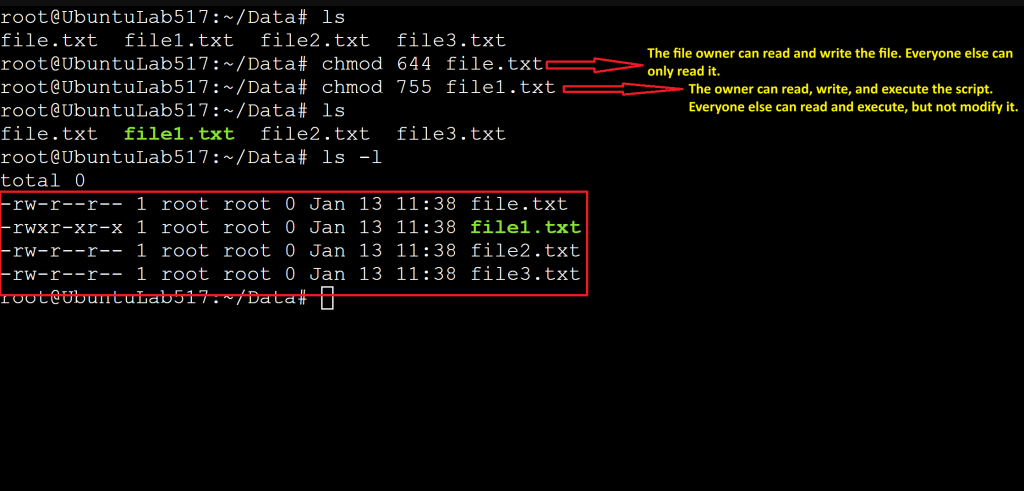
Key Lesson
777 is almost never correct.
Understand what you are granting and to whom.
Change Ownership
sudo chown user:group file3.txt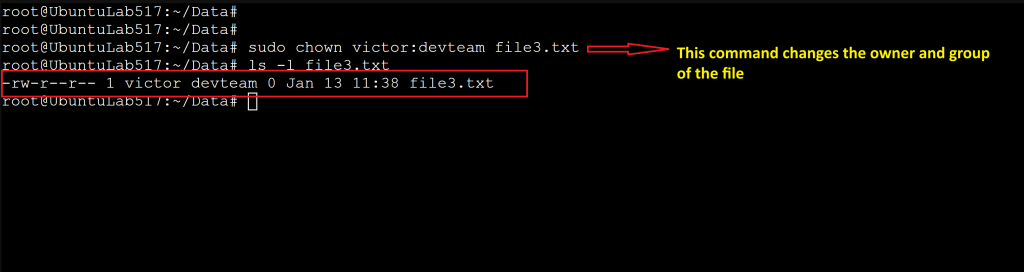
Ownership ≠ permissions. Both work together.
sudo & ROOT: CONTROLLED POWER
The sudo command allows trusted users to run privileged commands without logging in as root. This protects the system and enforces least privilege.
Who Is Root?
root is the superuser with unrestricted access.
Linux protects root because:
- One mistake can destroy the system
- Security depends on limited privilege
What sudo Really Does
sudo temporarily allows a trusted user to run a command as root.
It:
- Logs actions
- Limits access
- Reduces risk
Inspect sudo Privileges
sudo -l
sudo whoami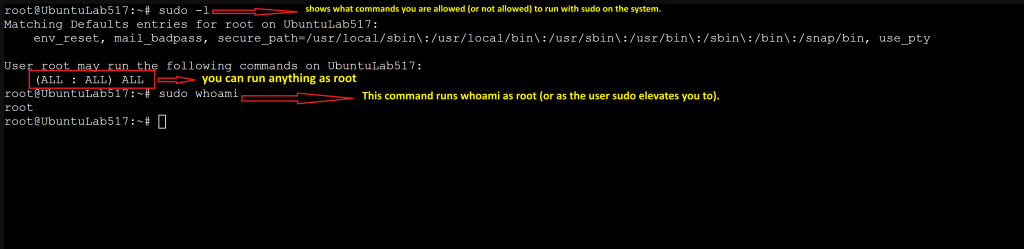
Key Lesson
Admins borrow power, they don’t live as root.
Why sudo matters
- Reduces risk
- Provides audit logs
- Allows fine‑grained control
- Prevents accidental system damage
PACKAGE MANAGEMENT: SOFTWARE CONTROL
Linux distributions use package managers to install, update, and remove software. Ubuntu uses apt, while RHEL‑based systems use yum or dnf.
Linux does not install software randomly, instead, it uses:
- Trusted repositories
- Dependency resolution
- Cryptographic verification
This is why Linux systems are stable and secure.
Package Manager (Debian/Ubuntu Example)
apt= Advanced Package Tool
Manage Software
sudo apt update
sudo apt install tree
tree
sudo apt remove tree
What Happens Behind the Scenes
- Repository metadata is updated
- Dependencies are resolved
- Files are tracked for clean removal
SERVICES & systemd: WHAT RUNS YOUR SYSTEM
Modern Linux systems use systemd to manage services. Understanding systemd is crucial for troubleshooting, automation, and server administration.
What Is a Service?
A service is a background process that:
- Starts automatically
- Runs without user interaction
- Provides core functionality (SSH, web servers, logging)
What Is systemd?
systemd is the init system that:
- Starts services at boot
- Monitors them
- Restarts them if they fail
Inspect Services
systemctl status ssh
systemctl list-units --type=service
Control a Service
sudo systemctl stop ssh
sudo systemctl start ssh
sudo systemctl restart ssh
Enable Services at Boot
sudo systemctl enable ssh
sudo systemctl disable ssh
Key Difference
- Running ≠ Enabled
- One affects now, the other affects boot
Key systemd concepts
- Service: A background process
- Unit file: Defines how a service runs
- Journal: Centralized logging system
You now understand how to: ✔ Manage users and groups ✔ Control file access safely ✔ Use sudo correctly ✔ Install and remove software ✔ Control system services
This is real Linux operational knowledge.
Final Challenge: Beginner → Intermediate
Put your new skills to the test by completing this challenge:
Your Task
- Create a user named
yourname. - Create a group named
projectteam. - Add the user to the group.
- Create a shared folder
/opt/project. - Assign group ownership to
projectteam. - Apply SGID so files inherit the group.
- Install Apache or Nginx.
- Enable and start the service.
- Document your steps.
This challenge reinforces everything you’ve learned and builds real‑world confidence.
Conclusion
Linux core operations form the backbone of every cloud and DevOps workflow. By mastering users, permissions, sudo, package management, and services, you gain the ability to manage systems confidently and troubleshoot issues with precision. This gives you a strong foundation for more advanced topics such as automation, scripting, containers, and cloud infrastructure.