In this lab, I implemented key Group Policy configurations to standardize system behavior, improve user experience, and strengthen security awareness across all domain-joined devices.
The configuration focuses on:
- Enforcing a consistent and professional desktop environment
- Preventing unauthorized or accidental system shutdowns
- Displaying a clear security and legal notice to users before sign-in
All policies were deployed centrally using Group Policy Management on Windows Server 2019, ensuring consistent application across both on-site and hybrid environments.
Lab Overview
Environment
- Active Directory Domain Services (AD DS)
- Group Policy Management Console (GPMC)
- Domain-joined Windows client machines
Policies Implemented
- Desktop background enforcement
- Power button behavior restriction
- Interactive logon message (legal notice)
Step-by-Step Lab Tutorial on Windows Server
Step 1: Change Desktop Background for All Users
Purpose: Ensure every user logs into a standardized, branded desktop environment.
Steps:
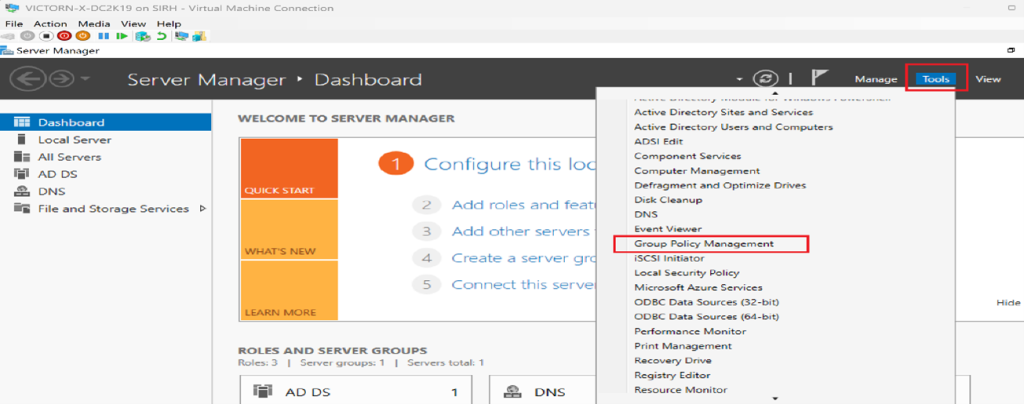
Open Server Manager
Navigate to Tools → Group Policy Management
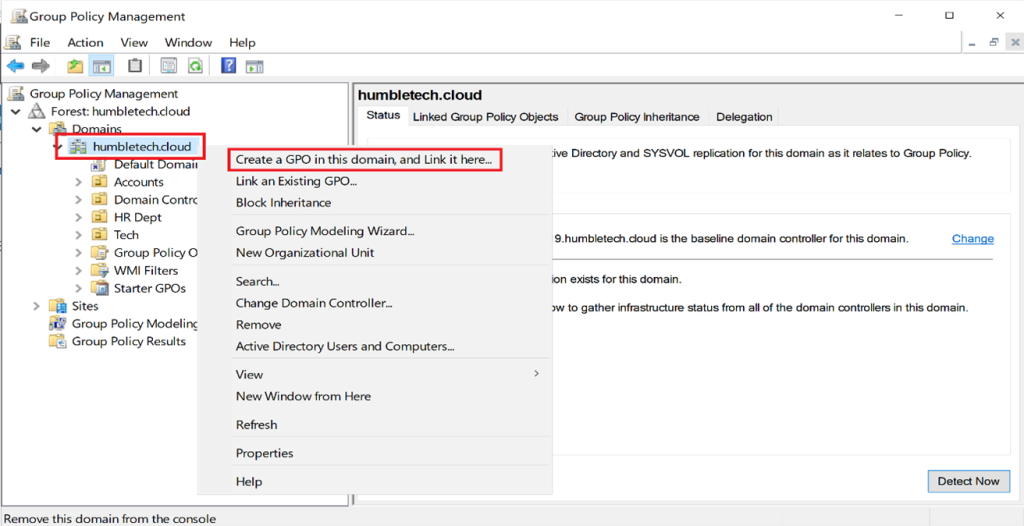
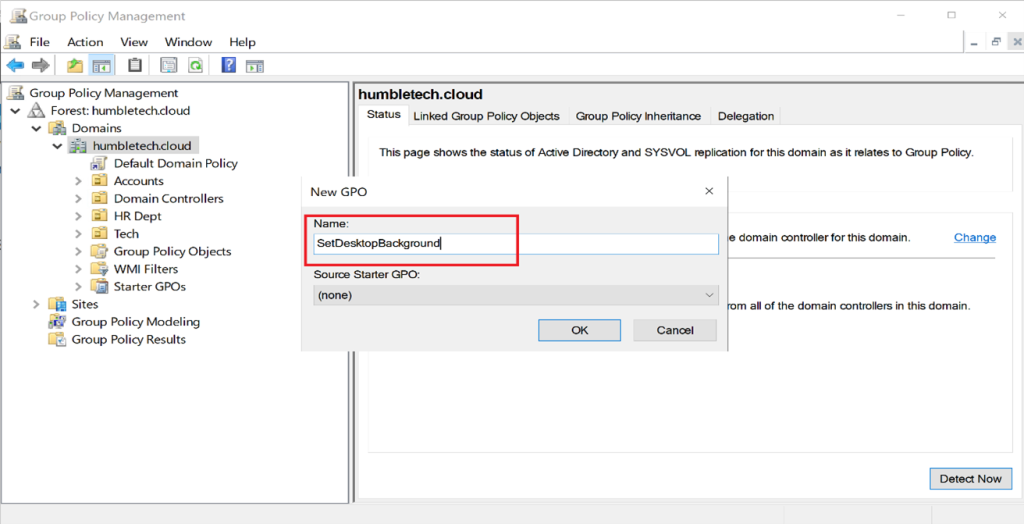
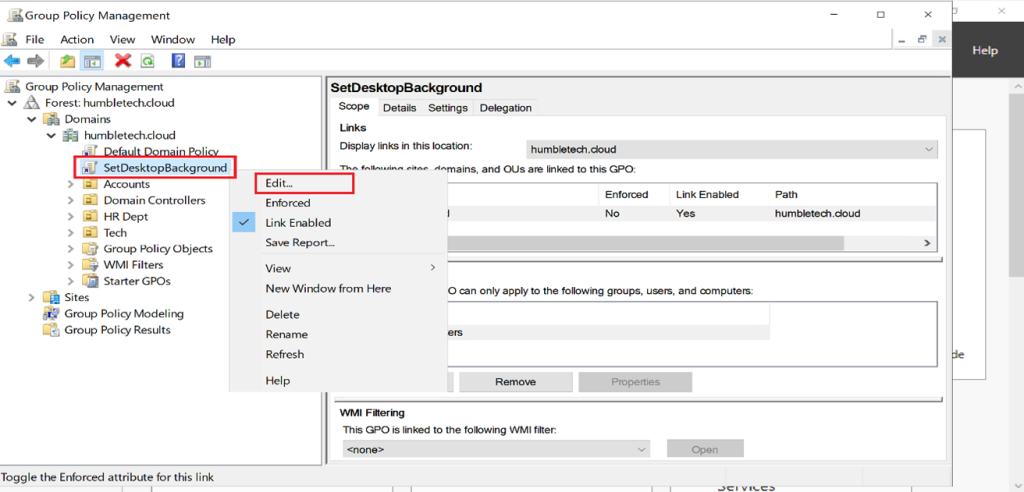
Create or edit a GPO (example: CompanyDesktopBackground)
Link the GPO to the domain or relevant OU
Navigate to: User Configuration → Administrative Templates → Desktop → Desktop Wallpaper
Enable Desktop Wallpaper
Set the image path (UNC recommended):
\\DC01\Wallpapers\bg.jpg
Choose a style such as Fill or Stretch
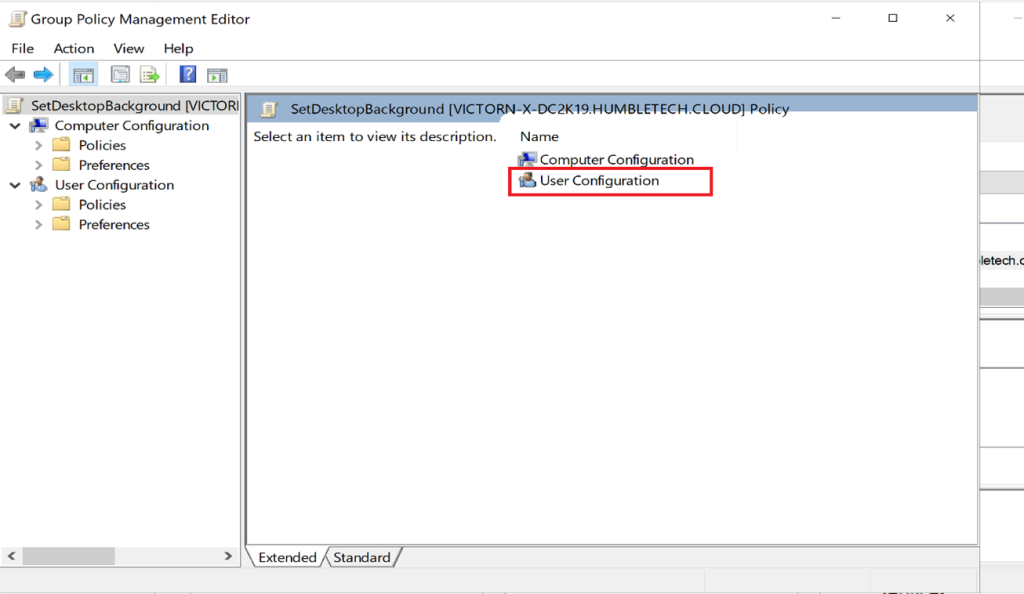
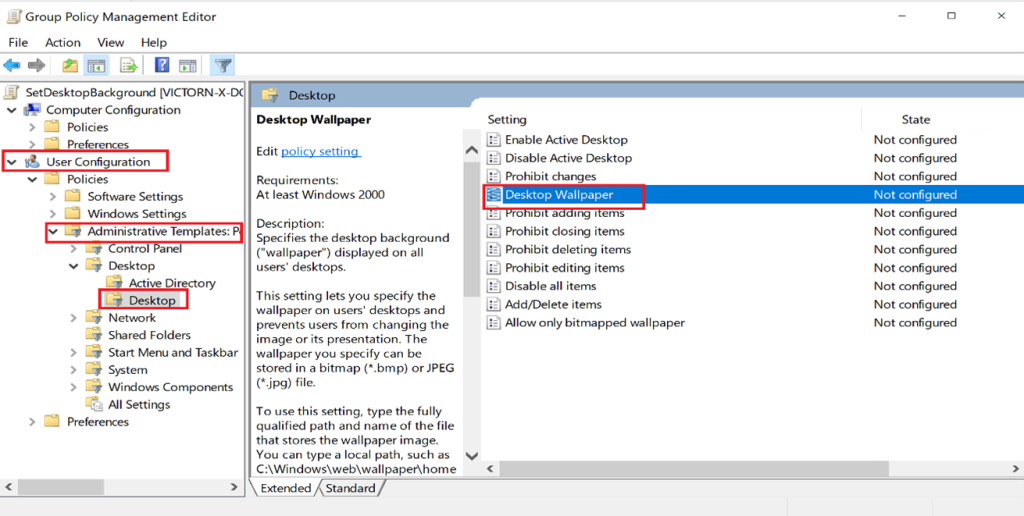
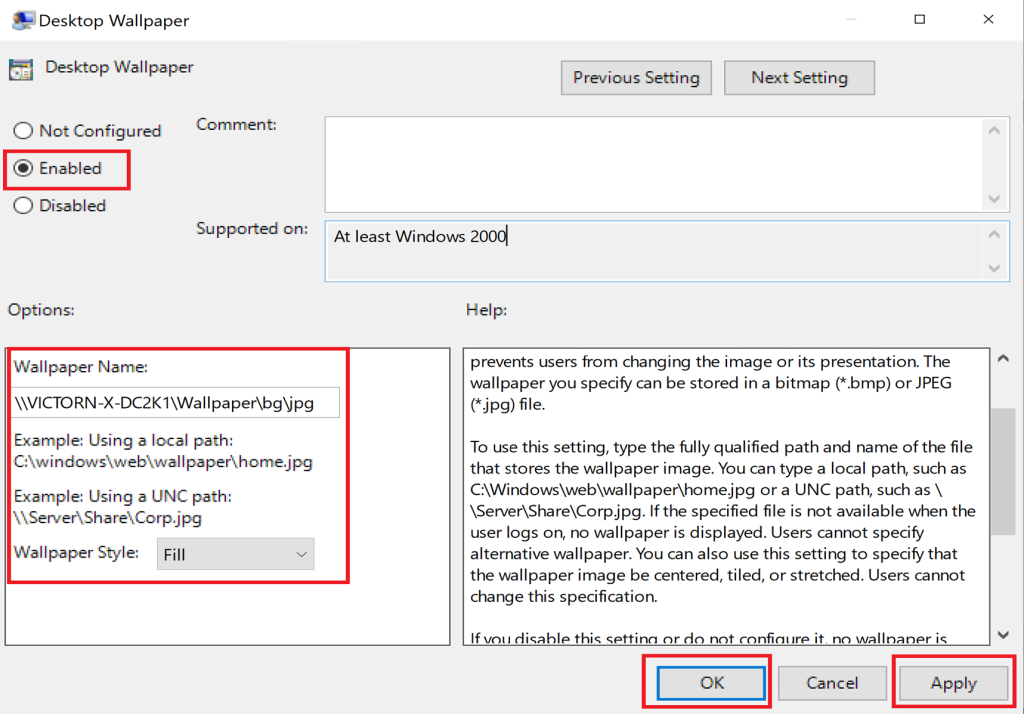
Result: All domain users receive a consistent, professional desktop background at logon.
Step 2: Disable or Restrict Power Button Behavior
Purpose: Prevent accidental or unauthorized shutdowns that could disrupt operations.
Steps:
Create a new GPO (example: PowerButtonControl)
Link it to the domain or workstation OU
Navigate to: Computer Configuration → Administrative Templates → System → Power Management → Button Settings
Configure Select the Power Button Action
Disable shutdown
Or set action to Lock or Sleep only
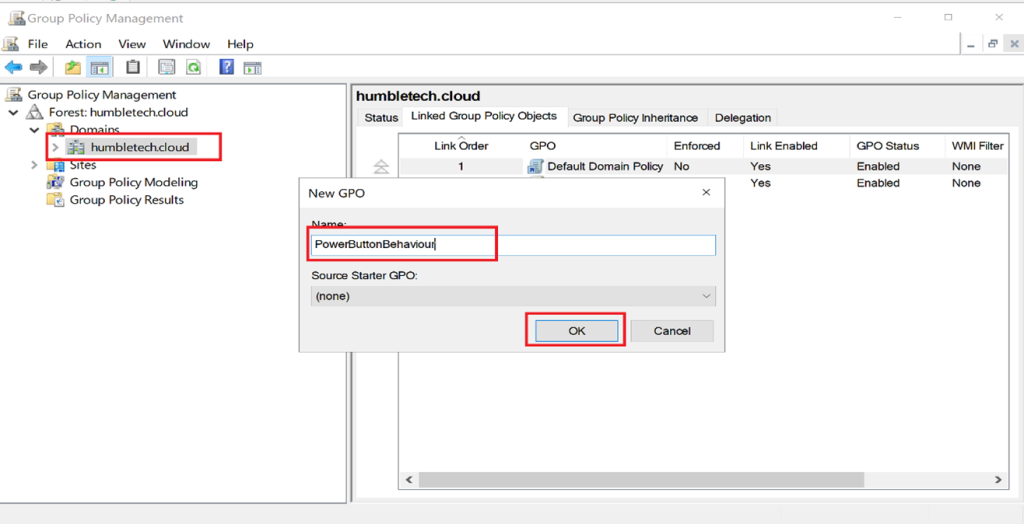
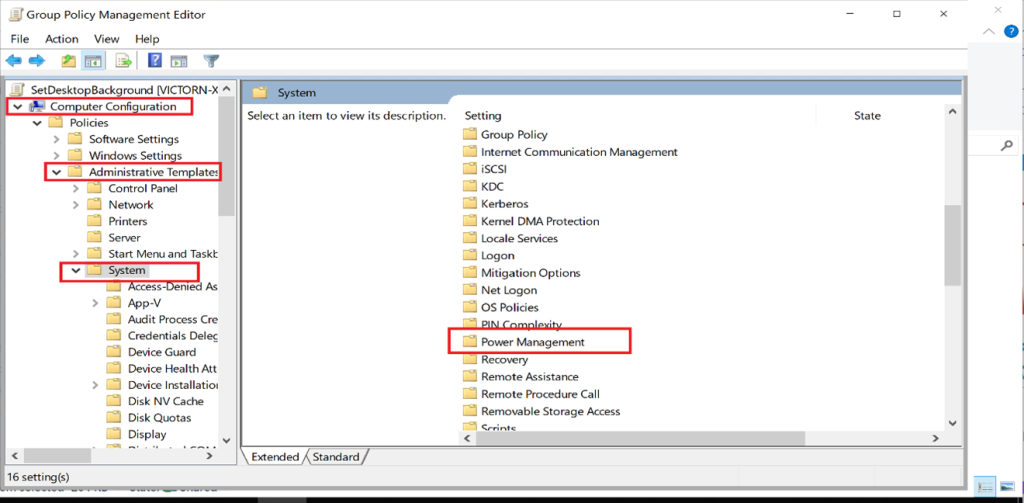
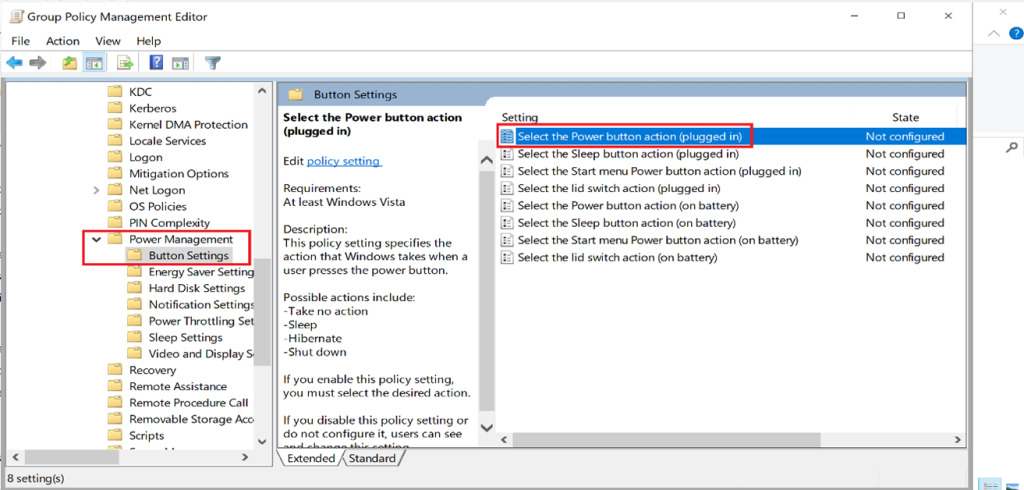
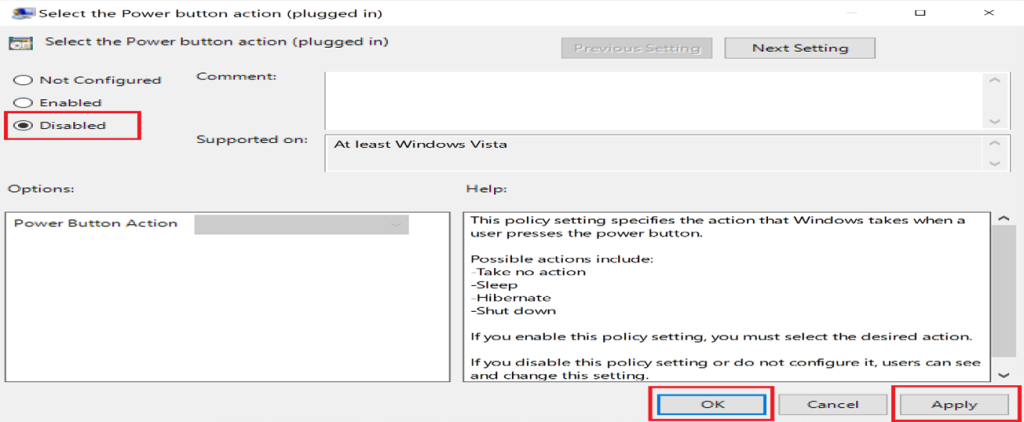
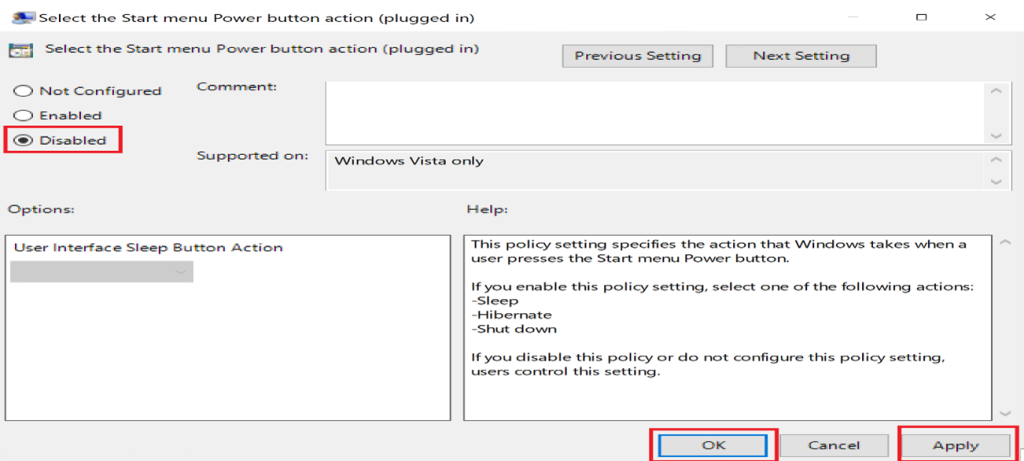
Result: Improved workstation availability and reduced downtime risks.
Step 3: Enforce Legal Notice / Logon Banner
Purpose: Display security warnings or compliance notices before user authentication.
Steps:
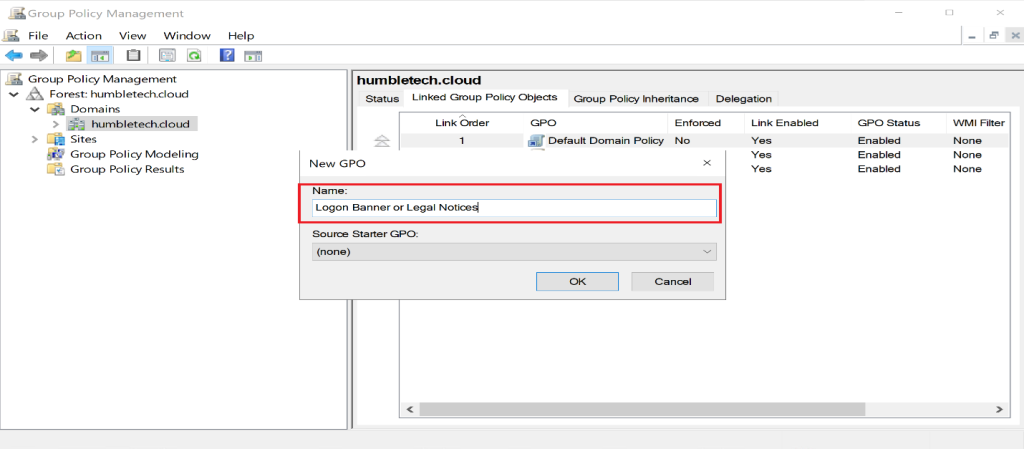
Create a GPO (example: LegalNotice)
Link it to the domain
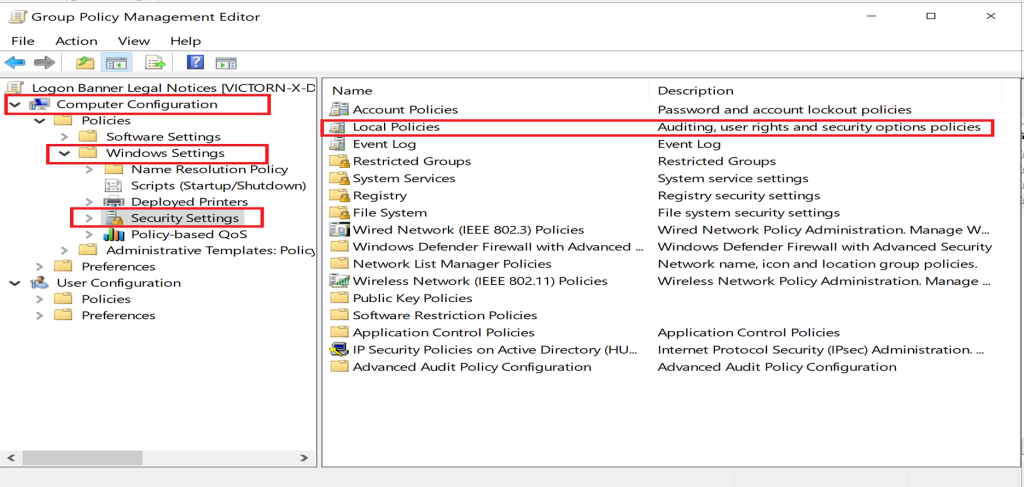
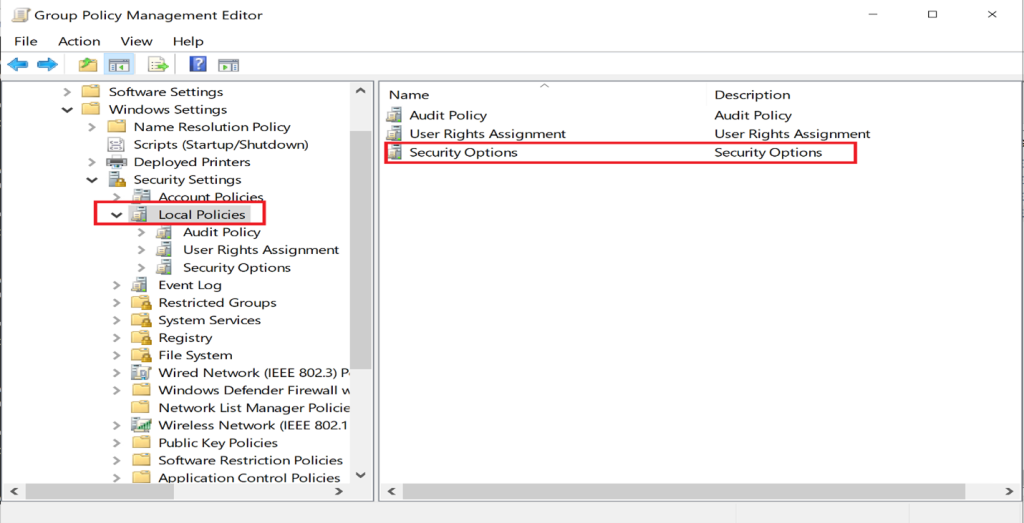
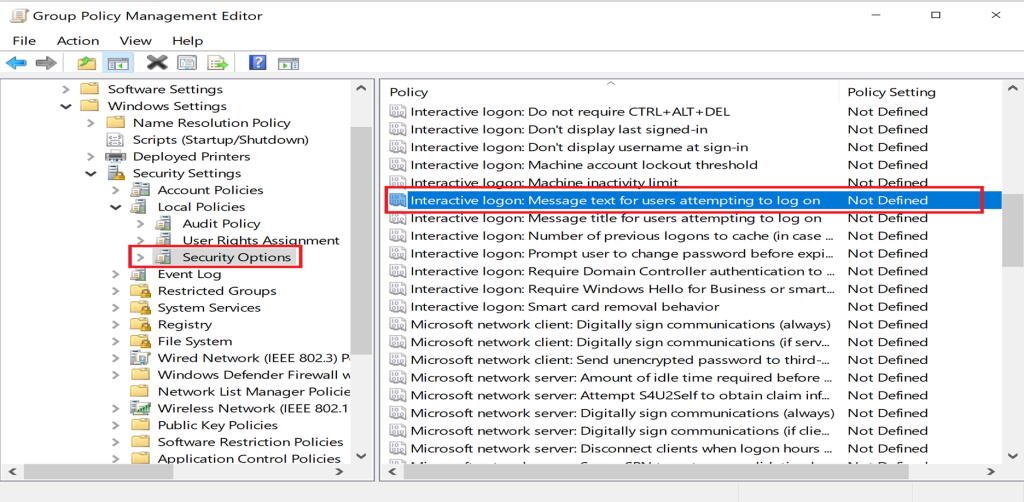
Navigate to: Computer Configuration → Windows Settings → Security Settings → Local Policies → Security Options
Configure:
Interactive logon: Message title
Interactive logon: Message text
Log in to a domain-joined client to verify
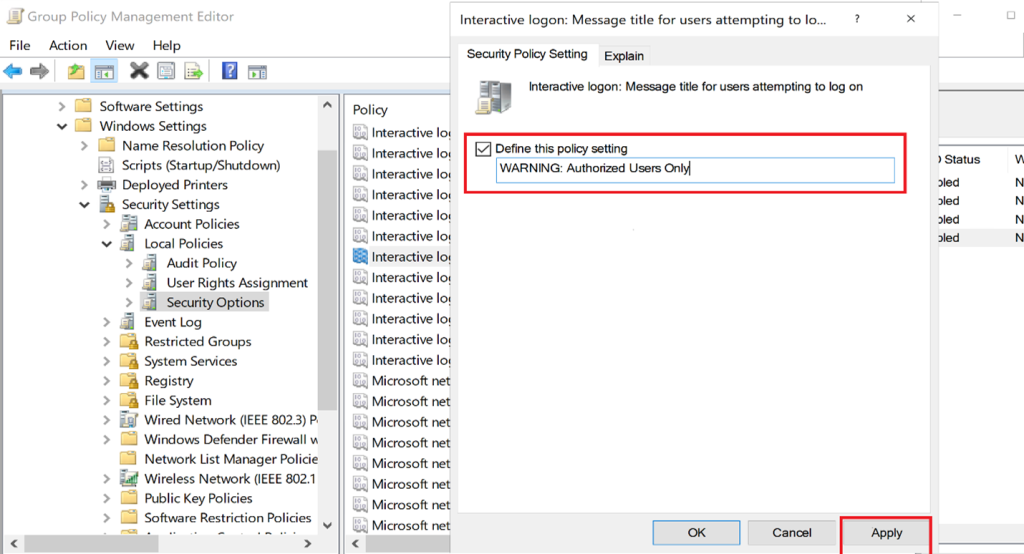
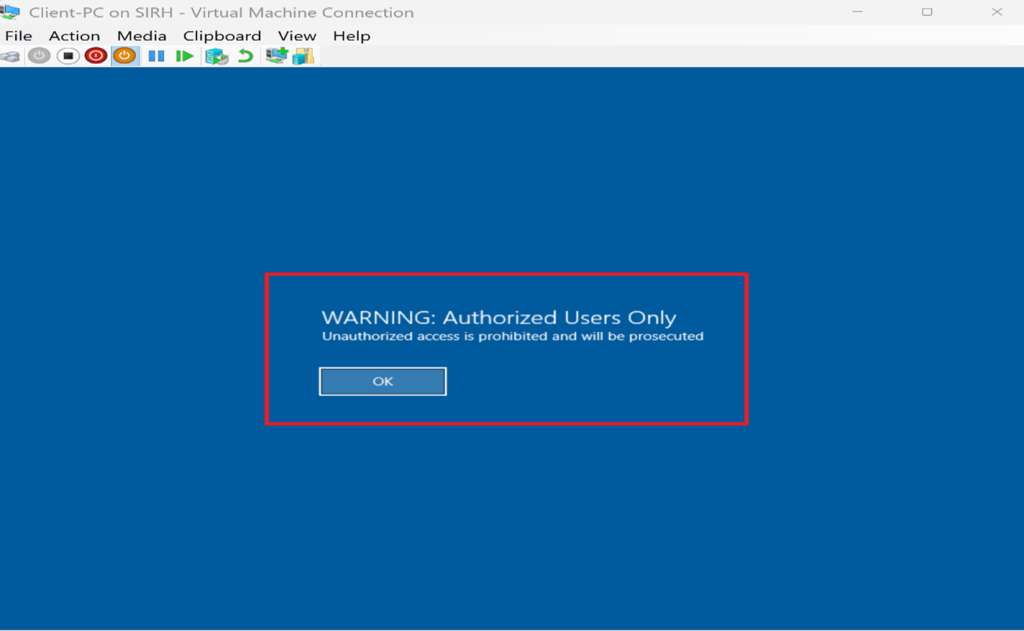
Result: Users receive a clear security reminder before accessing corporate systems.
I enhanced the domain environment's operational and security posture by successfully configuring and deploying these Group Policy settings.
- The desktop background policy ensured that every domain-joined system displayed standardized, branded wallpaper, reinforcing organizational identity and maintaining a clean, professional interface.
- The power button action policy prevented unauthorized or accidental shutdowns, reducing system downtime risks and maintaining greater control over workstation availability.
- The interactive logon message policy provided a clear, customized security disclaimer and organizational notice at every logon screen, promoting user awareness and supporting compliance requirements.
Step 4: Apply and Validate Policies
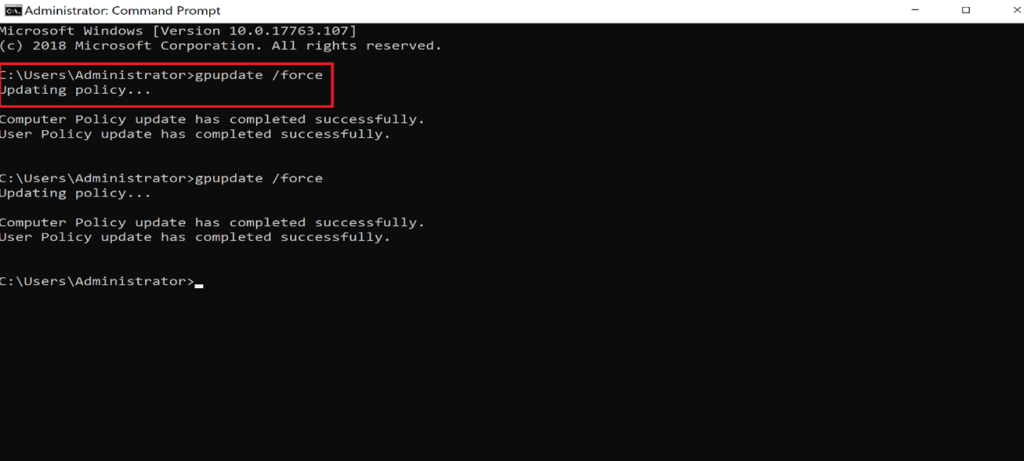
Run the following command on a domain client:
gpupdate /force
Optional validation tools:
rsop.mscgpresult /r
Why This Matters
These Group Policy configurations help organizations achieve the following:
✔️ Consistent user experience ✔️ Centralized workstation control ✔️ Improved security posture and compliance ✔️ Reduced manual configuration for IT teams ✔️ Clear security communication at every logon
Microsoft confirms that Group Policy provides centralized management and enforcement of user and computer settings in Active Directory environments, making it a foundational enterprise control mechanism.
Outcome and Impact
By successfully deploying these Group Policy settings, I enhanced the operational consistency and security posture of the domain environment:
- Desktop Background Policy Reinforced organizational branding and ensured a clean, uniform user interface.
- Power Button Policy Reduced risks of accidental shutdowns and improved workstation uptime.
- Logon Message Policy Promoted security awareness and supported compliance requirements.
This lab demonstrates how centralized policy enforcement simplifies administration while improving reliability and security across enterprise environments.