After deploying Active Directory Domain Services (AD DS) on a Windows Server 2019 virtual machine using Hyper-V, the next logical step is to configure core Active Directory objects that reflect a real enterprise environment.
This lab focuses on Organizational Units (OUs), Groups, and Users, which form the foundation of identity, access control, and administration in Active Directory.
Prerequisite: AD DS is already installed and the server is promoted to a domain controller. (Previous lab referenced here: How to Install AD DS on Windows Server using Hyper-V
Lab Objective
To simulate a real-world Active Directory environment by:
- Designing a basic OU structure
- Creating security groups
- Creating user accounts and assigning them to groups
Step-by-Step Lab Tasks
Step 1: Create Organizational Units (OUs)
Organizational Units are used to logically separate users, groups, and computers.
- OUs are created to represent departments or roles
- This structure prepares the domain for Group Policy application and delegated administration
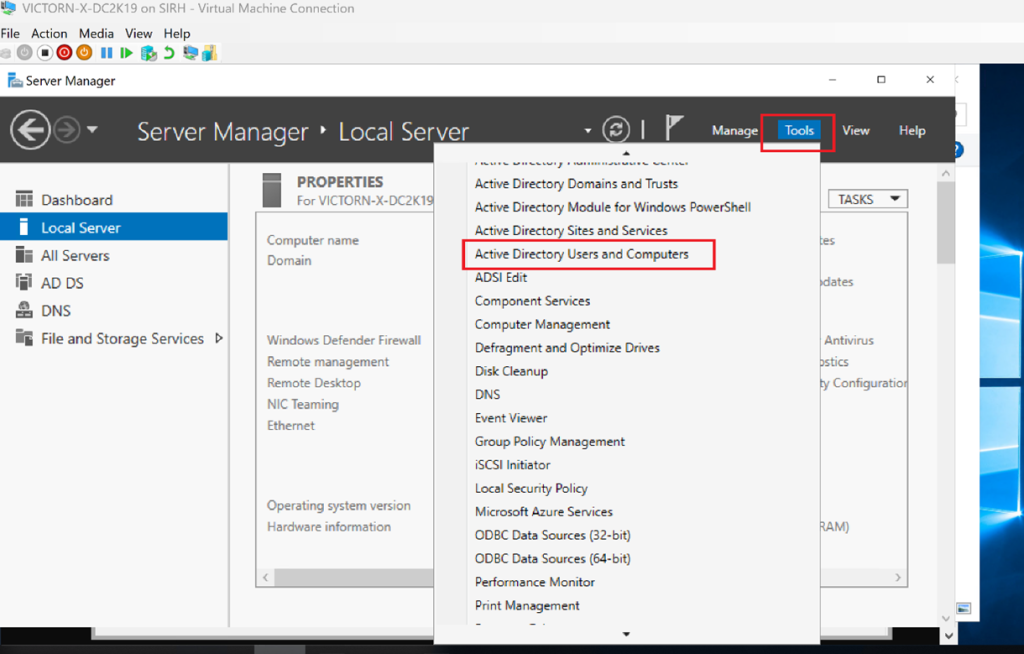
Open Active Directory Users and Computers (ADUC)
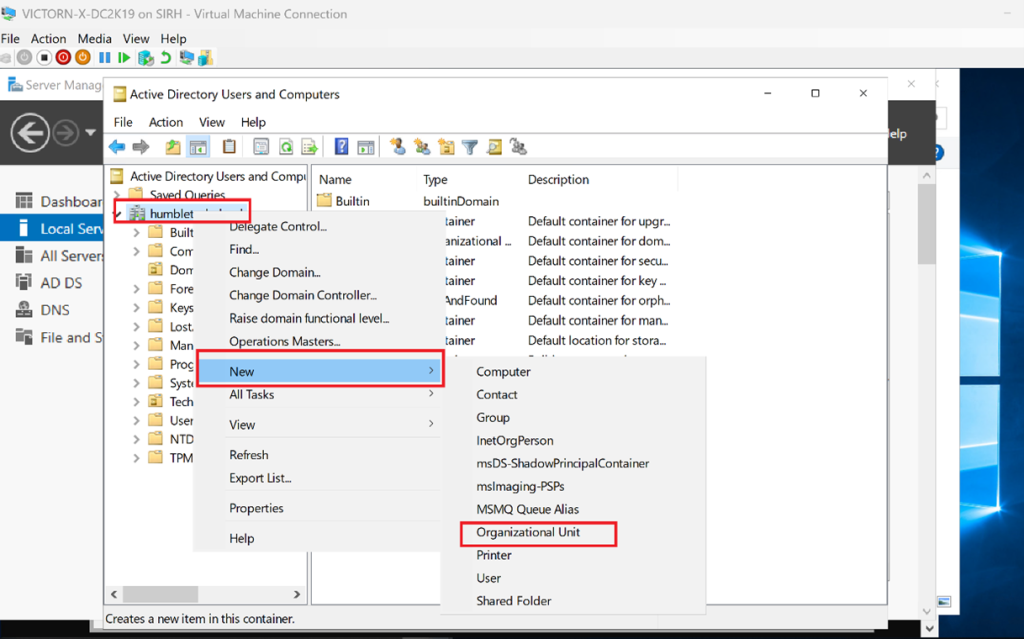
Right-click the domain (humbletech.cloud) → New → Organizational Unit
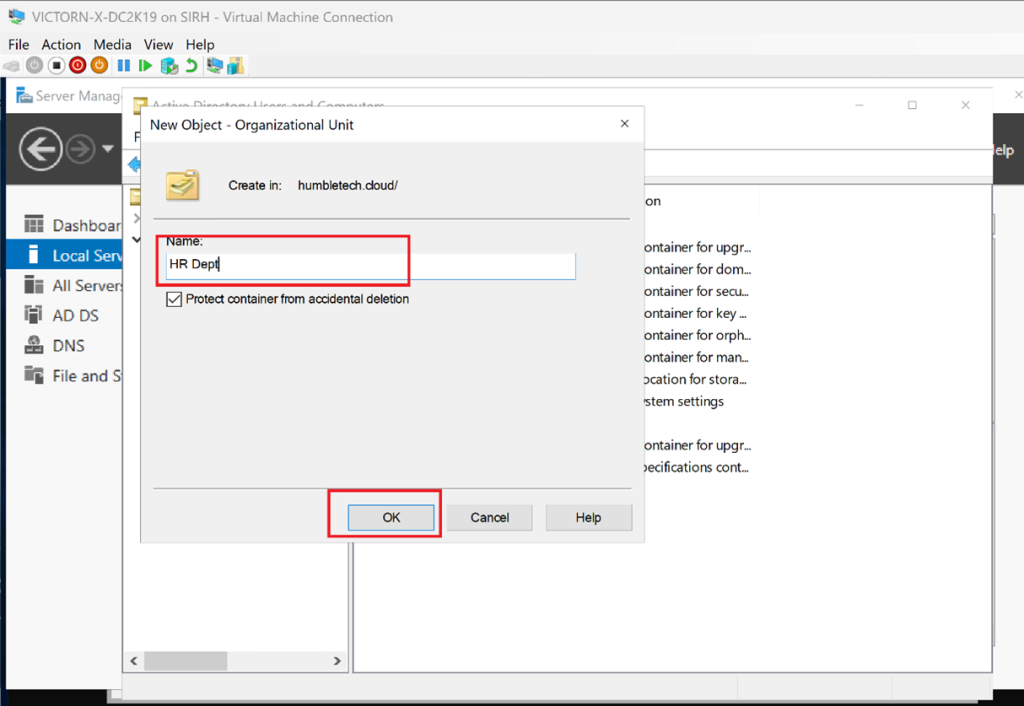
Name the OU (e.g., HR Dept) → Click OK
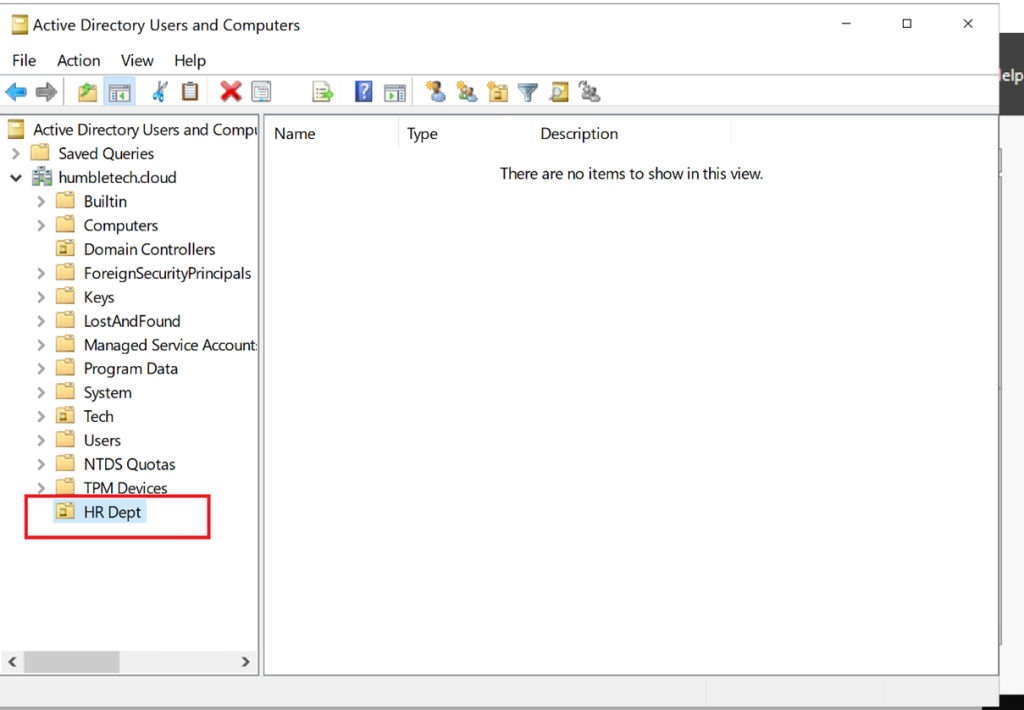
Verify that the OU appears under your domain
Step 2: Create Active Directory Groups
Groups are created to manage permissions efficiently.
- Security groups are created within the appropriate OUs
- Groups are designed to reflect job roles or access requirements
- This approach avoids assigning permissions directly to users
Navigate to the newly created OU
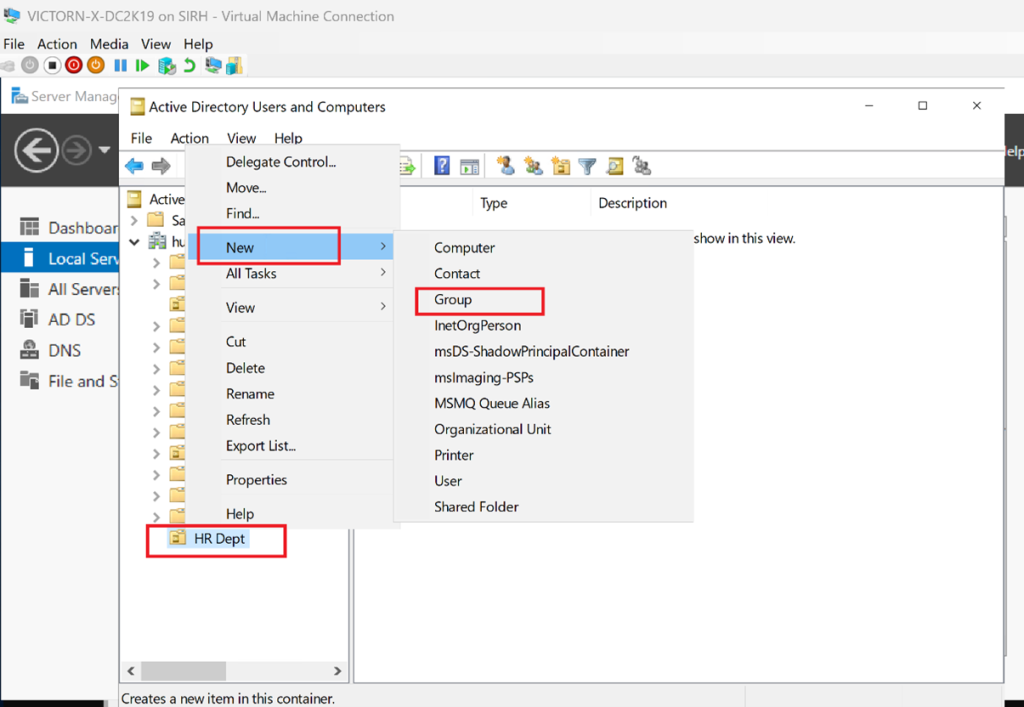
Right-click the OU → New → **User **→ Group
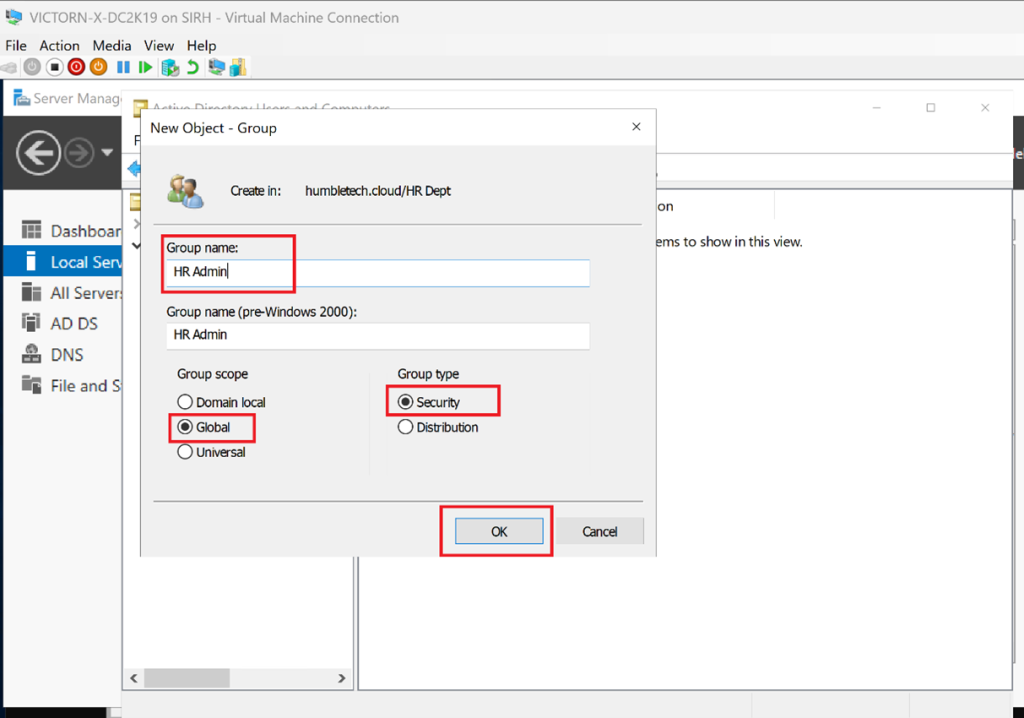
Enter the group name (e.g., HR Admins)
Choose group scope (e.g., Global) and type (e.g., Security)
Click OK
Step 3: Create Users and Assign Group Membership
User accounts are created and added to the relevant groups.
- Each user is placed in the correct OU
- Users inherit access through group membership
- This mirrors standard enterprise identity management practices
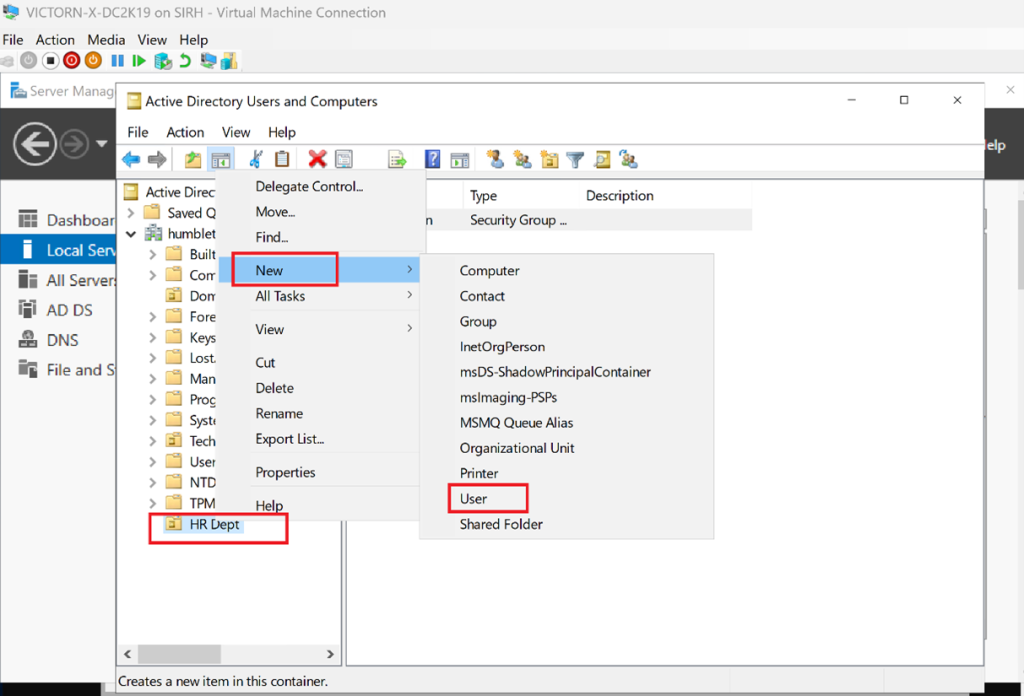
Right-click the OU → New → User
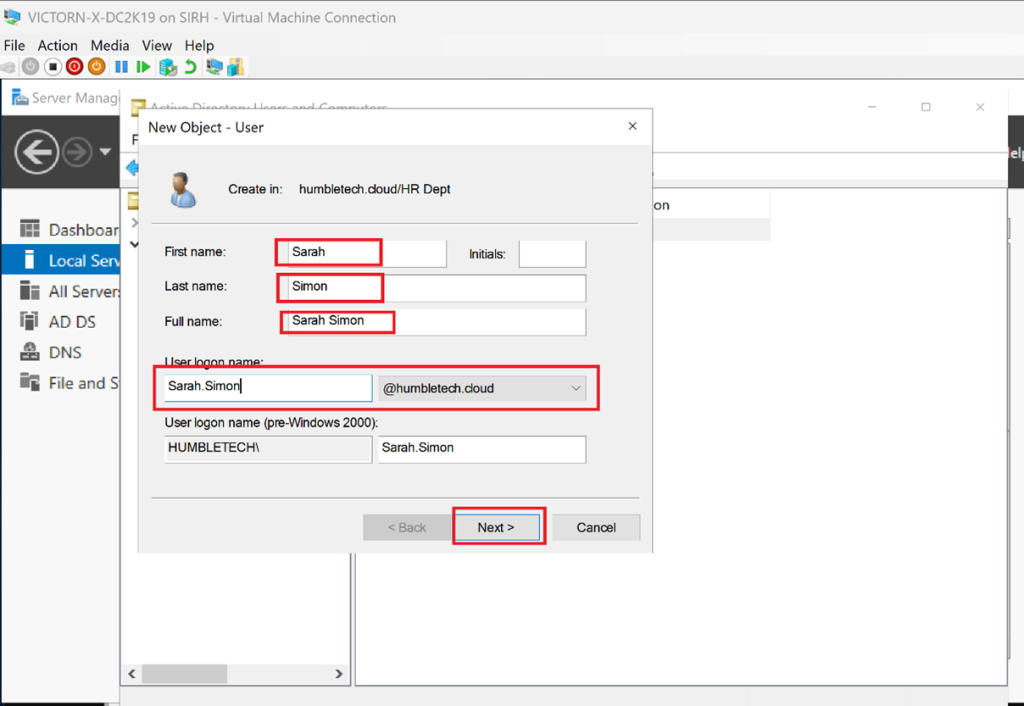
Fill in the First Name, Last Name, and User Logon Name
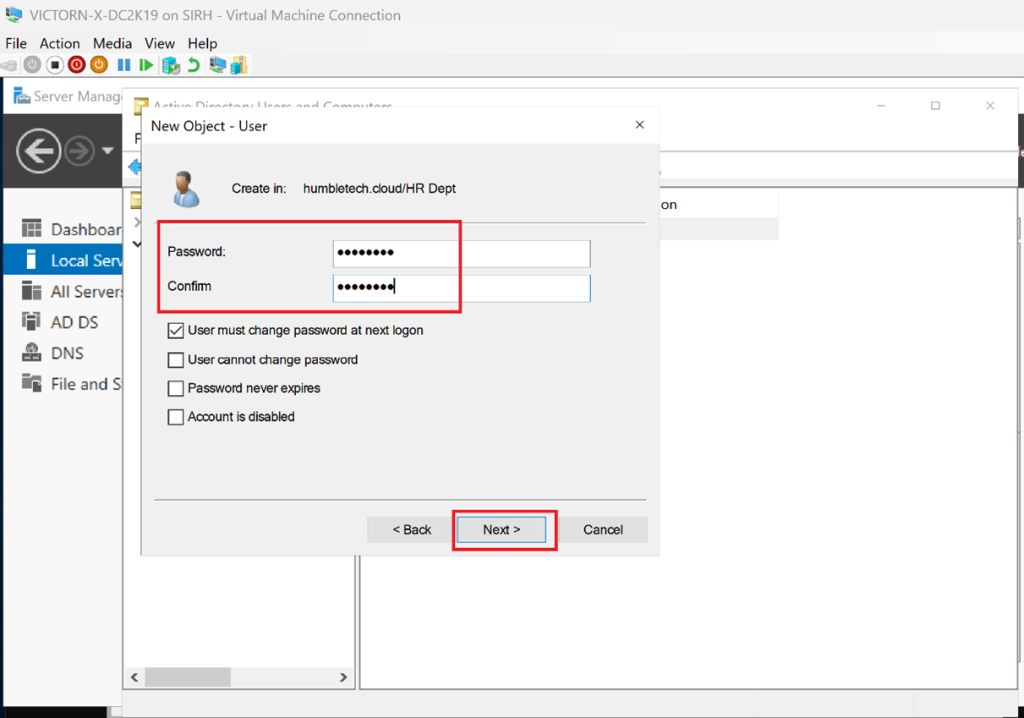
Set a password and configure account settings
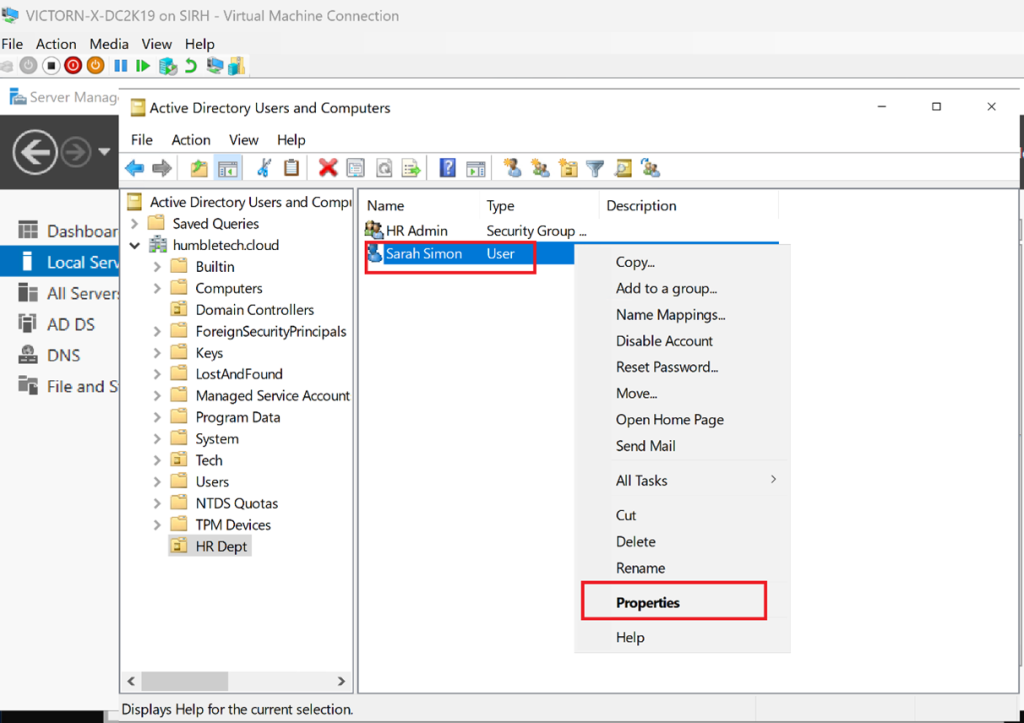
After creation, right-click the user → Properties
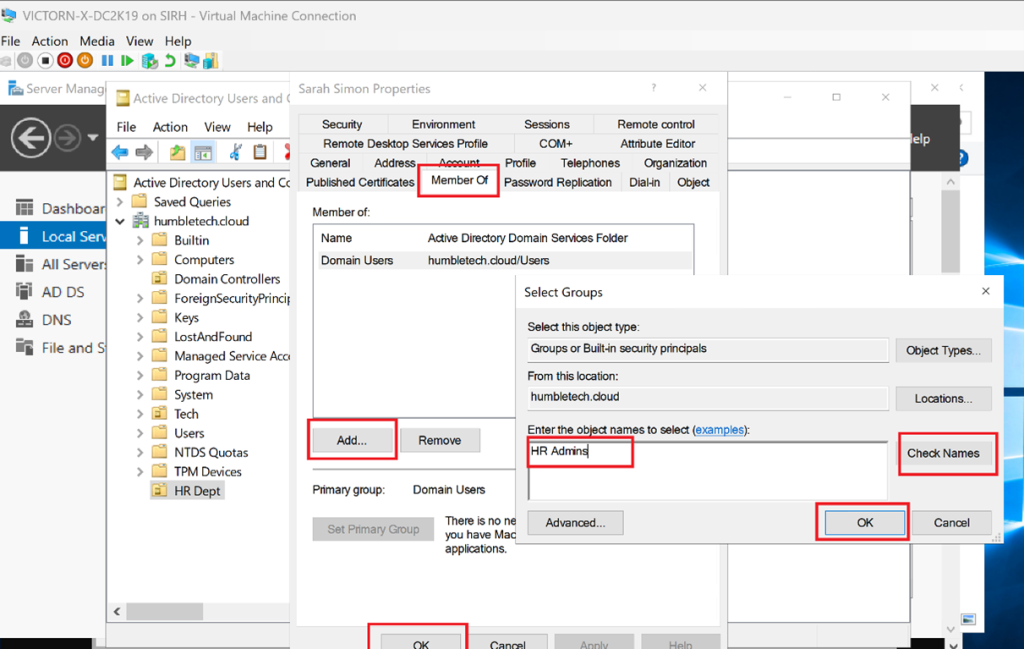
Go to the Member of tab → Click Add
Search and select the group (e.g., HR Admins) → Click** OK**
Verification:
Check the user’s group membership in Active Directory Users and Computers (ADUC)
Test user login and permission if applicable.
Congratulations! You have successfully created Organizational Unit, Groups, and Users.
Why OU and Group Structure Matters
A well-designed Active Directory structure enables:
- Centralized access control through groups
- Easier Group Policy management
- Secure delegation of administrative tasks
- Scalability for on-premises and hybrid environments
Microsoft recommends managing access through groups rather than individual users, especially in environments that integrate with cloud identity platforms.
Lab Outcome
At the end of this lab, the environment includes:
- A structured OU hierarchy
- Role-based security groups
- Users correctly assigned to groups
This setup provides a solid foundation for:
- Group Policy Objects (GPOs)
- Delegation of control
- Hybrid identity scenarios (on-prem AD + cloud)